
WordPress Backup to Google Drive (Beginner-Friendly Guide)


If your backups are stored only on your hosting server — they’re not really safe.
A server crash or hack can wipe out both your website and your backups at the same time.
That’s why many WordPress users choose Google Drive:
secure, accessible, and off-site.
In this guide, you’ll learn exactly how to back up your WordPress site to Google Drive — step by step.
Why Use Google Drive for WordPress Backups?
Google Drive is one of the most popular backup destinations — and for good reason.
Key benefits:
- Off-site storage (critical for security)
- Easy access from anywhere
- Free storage (up to 15GB)
- Reliable infrastructure
It’s a simple way to make your backups significantly safer.
What Gets Backed Up to Google Drive?
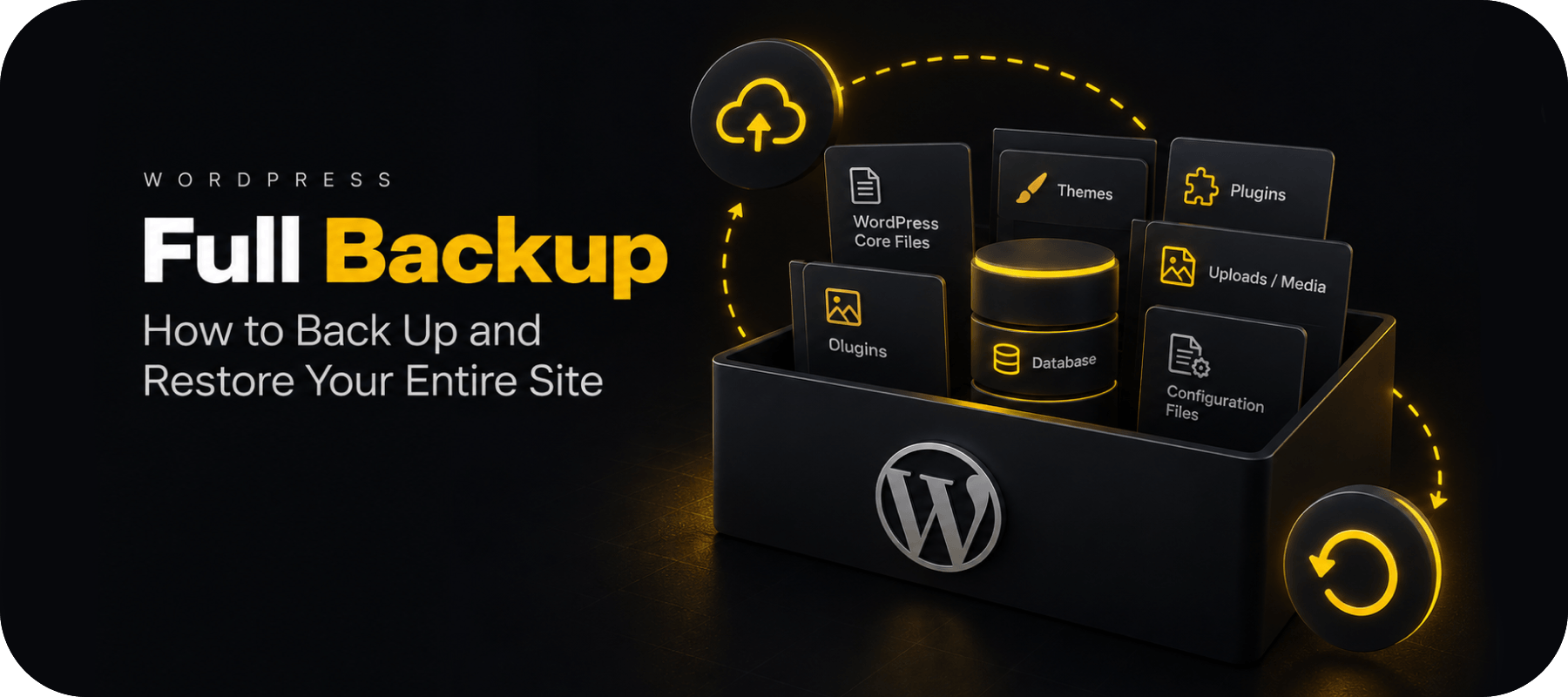
A proper backup includes:
- Website files (themes, plugins, uploads)
- WordPress database (content, users, settings)
Most backup plugins compress everything into a single archive and upload it automatically.
Method 1: Backup WordPress to Google Drive Automatically (Recommended)
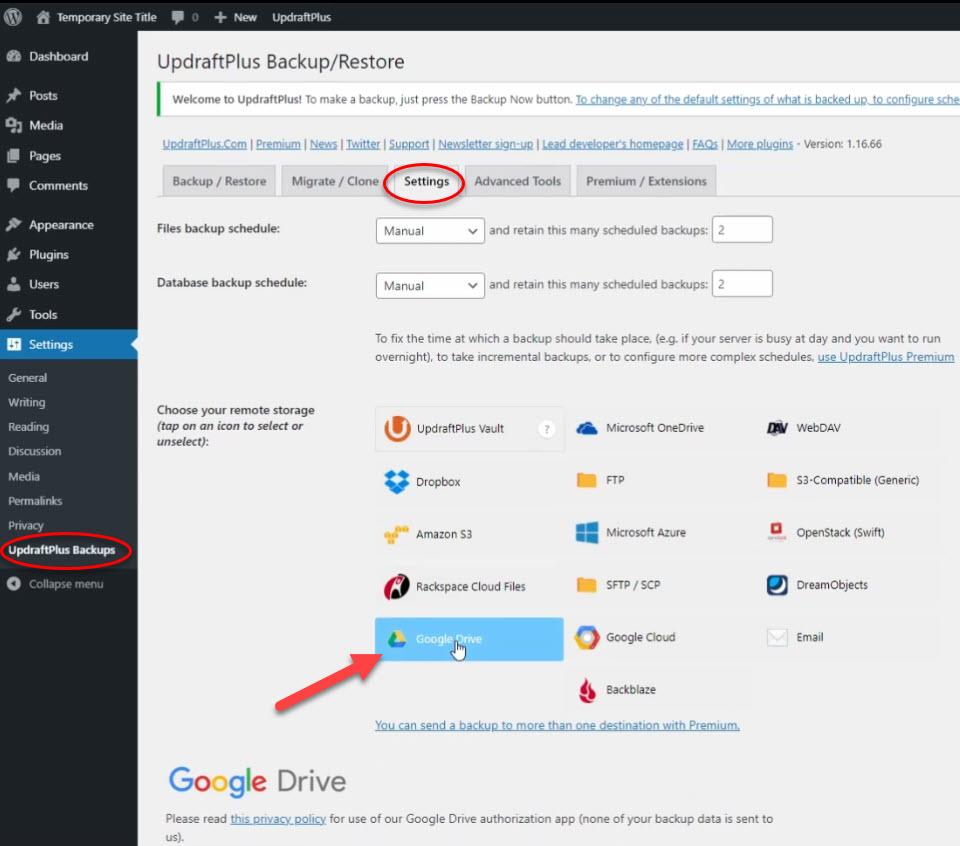
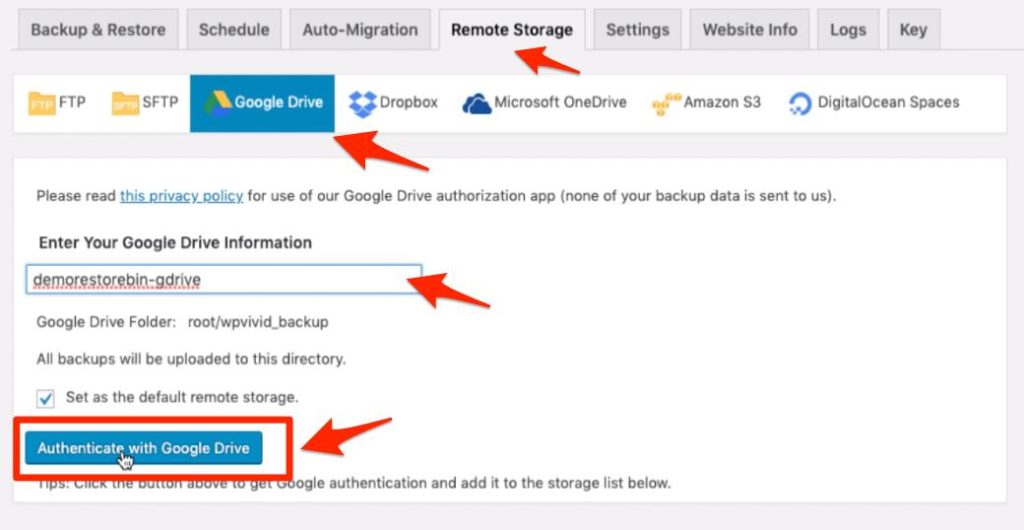
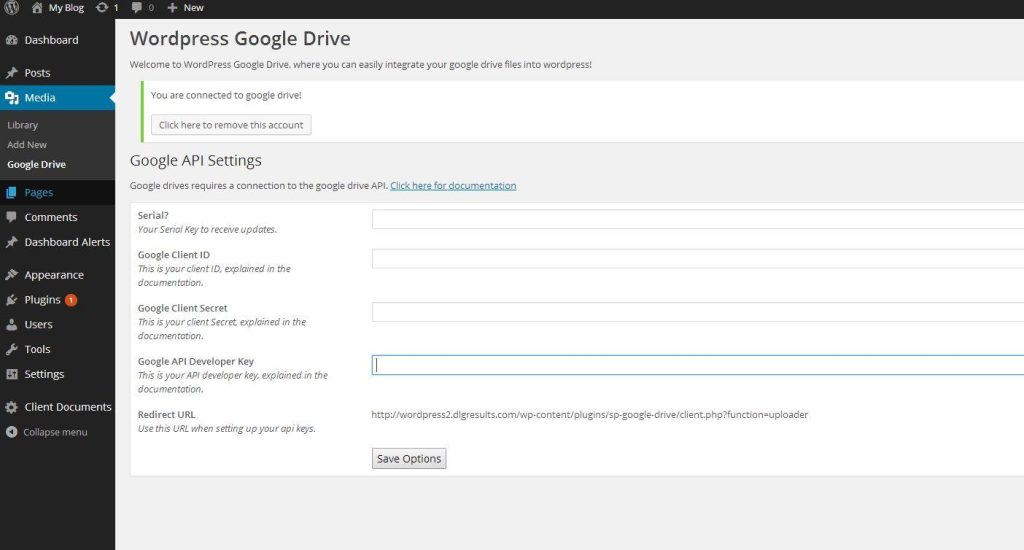
The easiest way to connect WordPress to Google Drive is using a plugin like BackupWP.
Step-by-Step Setup
- Install and activate BackupWP
- Go to backup settings
- Select Google Drive as storage
- Connect your Google account (OAuth)
- Choose backup schedule (daily recommended)
- Start your first backup
Once connected, your backups will be automatically uploaded to Google Drive.
Why This Method Works Best
- Fully automated
- No manual uploads
- Secure connection
- Easy restore when needed
Set it once, and your backups run in the background.
Method 2: Using Other Plugins (Alternative Option)
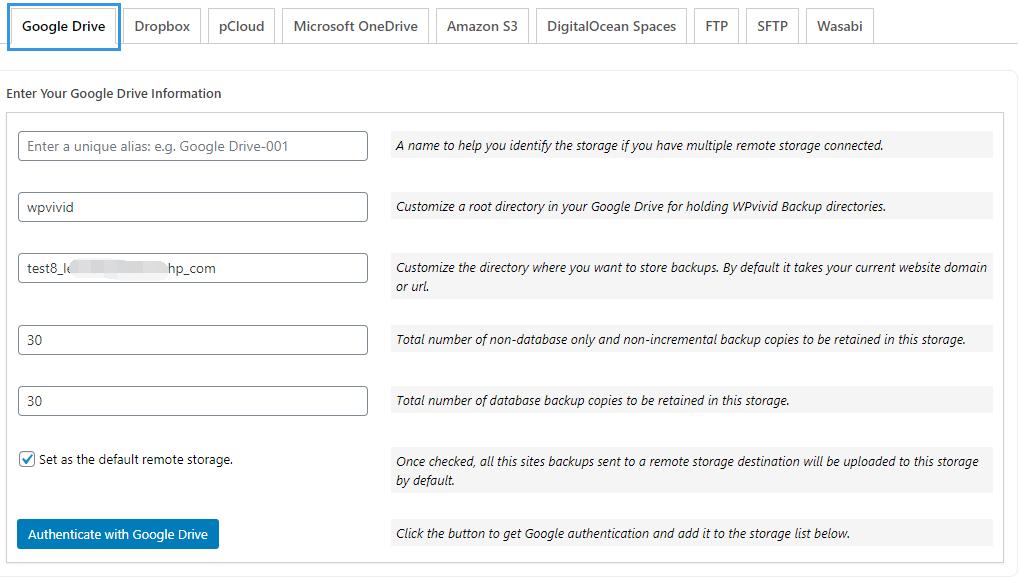
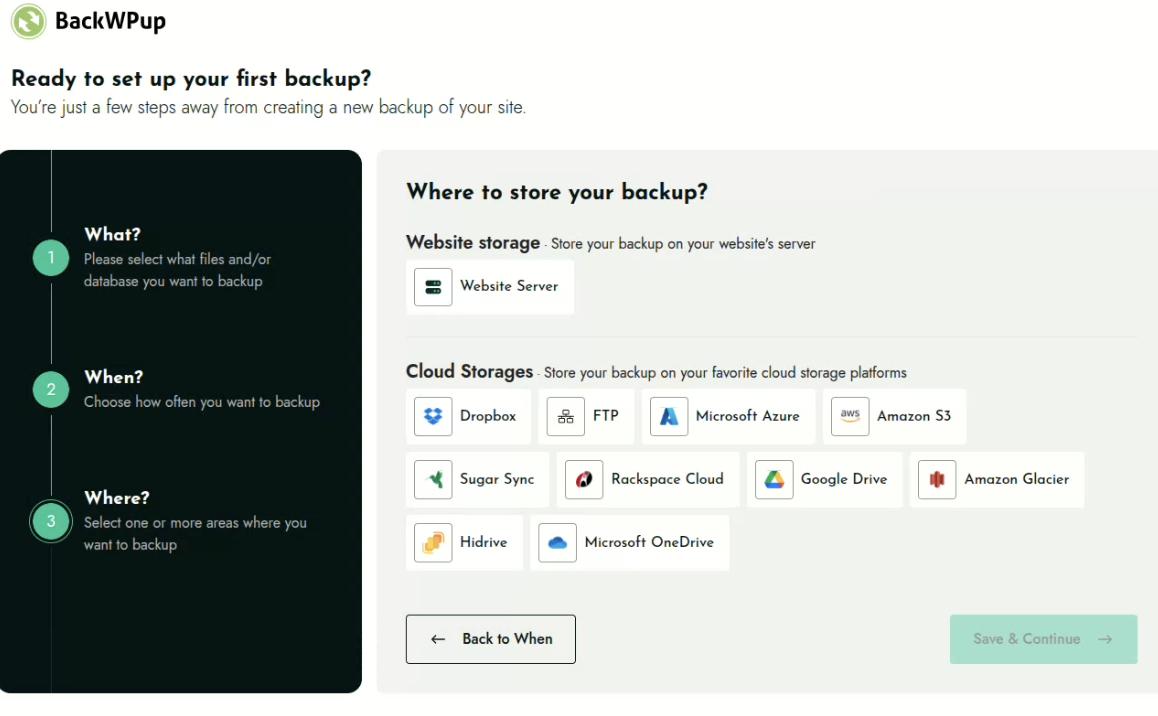
Many backup plugins support Google Drive, including:
- UpdraftPlus
- WPvivid
- BackWPup
-
BackupWP
The setup process is similar:
- Install plugin
- Connect Google Drive
- Schedule backups
However, some plugins require premium versions for cloud storage integration.
How Often Should You Backup to Google Drive?
Your backup frequency should match your site activity:
| Site Type | Recommended Frequency |
| Blog | Weekly |
| Business site | Daily |
| WooCommerce | Daily or real-time |
If you update your site daily — backup daily.
Best Practices for Google Drive Backups
To keep your backups safe and usable:
- Use a dedicated Google Drive folder
- Keep multiple backup versions (not just one)
- Don’t overwrite backups automatically
- Check backups periodically
A backup is only useful if you can restore it.
Common Mistakes to Avoid
- Storing backups only on your server
- Not automating backups
- Using only one backup location
- Never testing restore
How to Restore WordPress from Google Drive
Basic flow:
- Download backup from Google Drive
- Upload files to your server
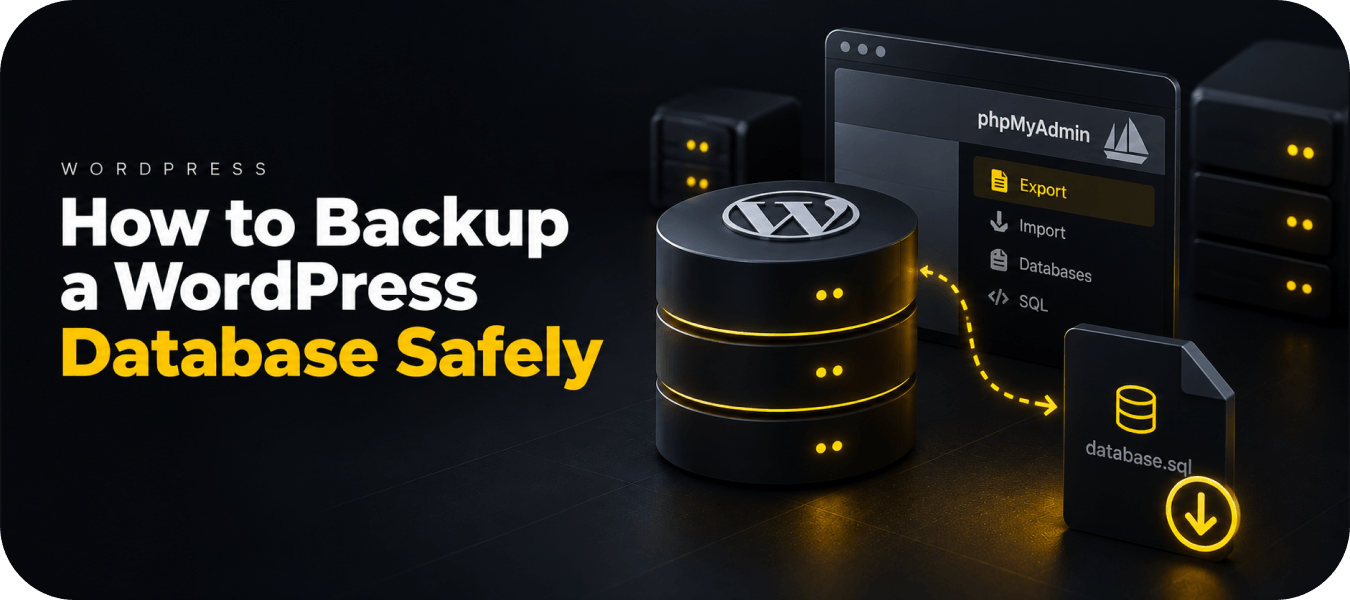
- Import database via phpMyAdmin
Or…
Use BackupWP to restore directly from Google Drive in one click.
Backing up your WordPress site to Google Drive is one of the easiest ways to improve your website’s safety.
It combines:
- cloud security
- automation
- accessibility
And removes one of the biggest risks — losing everything.
FAQ
Yes, using a backup plugin like BackupWP or UpdraftPlus, you can automatically send backups to Google Drive.
Yes, Google Drive is a secure and reliable cloud storage solution widely used for backups.
Yes, WordPress doesn’t support Google Drive backups natively – you need a plugin.
It depends on your site size. Small sites may need 1–2GB, while larger sites require more storage.
Google Drive offers 15GB of free storage, which is enough for many small to medium websites.


Comments
Thank you for your review!
Your review has been submitted for moderation.
Write a review or ask a question