
How Often Should You Backup Your WordPress Site?


Imagine waking up one morning, opening your website… and seeing nothing but an error page.
No posts. No pages. No customers.
Just a blank screen.
This isn’t rare. WordPress sites crash every day — due to updates, hacks, server issues, or simple human mistakes.
The difference between panic and a quick recovery?
👉 A working backup.
In this guide, you’ll learn how to properly back up your WordPress site — step by step — and how to make sure you never lose your data again.
The Real Cost of Not Having a Backup
A missing backup isn’t just inconvenient — it’s expensive.
- Lost traffic (and SEO rankings)
- Lost leads or sales
- Hours (or days) of recovery work
- Permanent data loss
For businesses, even a few hours of downtime can mean serious revenue impact.
Backups aren’t a technical feature — they’re insurance.
What a Full WordPress Backup Actually Includes
Many beginners assume a backup is “just files.” It’s not.
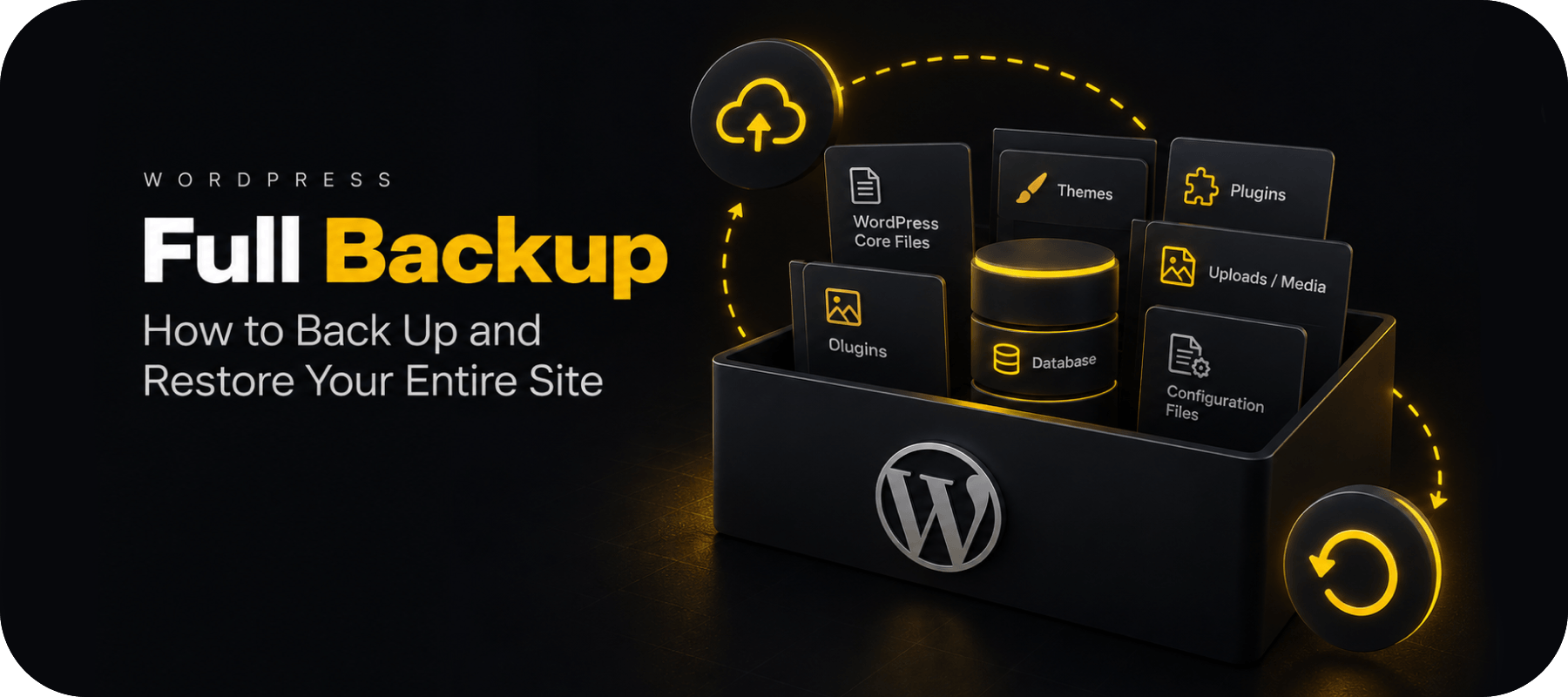
A complete WordPress backup includes:
Files
- Themes
- Plugins
- Media uploads
- Core WordPress files
Database
- Posts and pages
- User data
- Settings
- Comments
If you miss the database, your site structure is gone.
If you miss files, your design and functionality break.
You need both.
Method 1: Manual WordPress Backup (Full Control, More Risk)
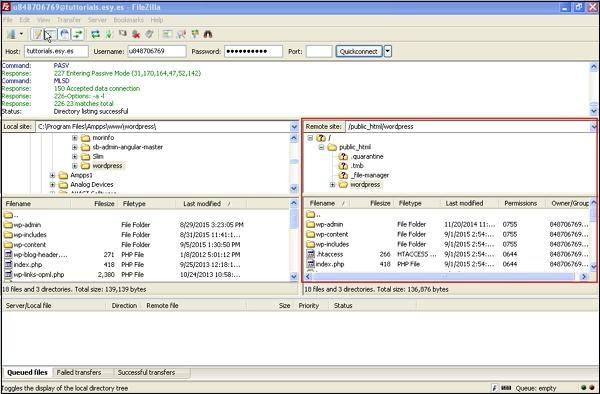
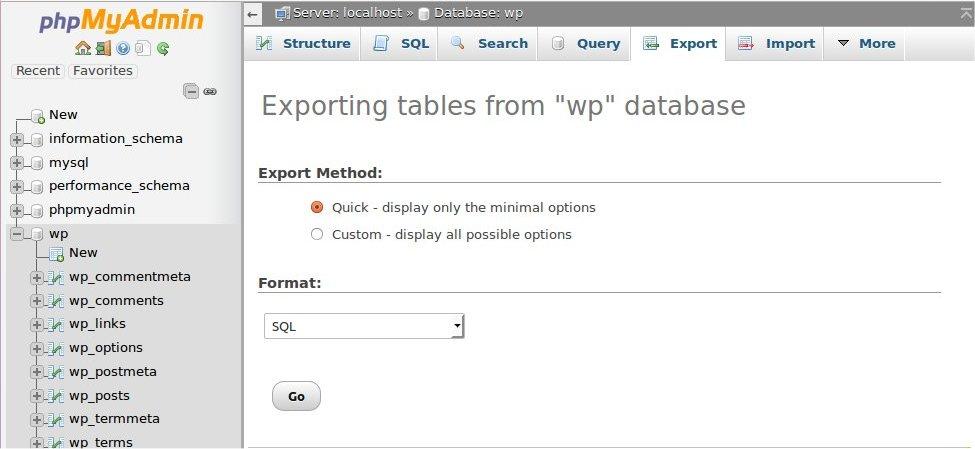
Manual backups give you full control — but they also introduce risk.
Step 1: Download Your Website Files
- Log in to your hosting account (cPanel or FTP)
- Open File Manager
- Navigate to /public_html/
- Download everything to your computer
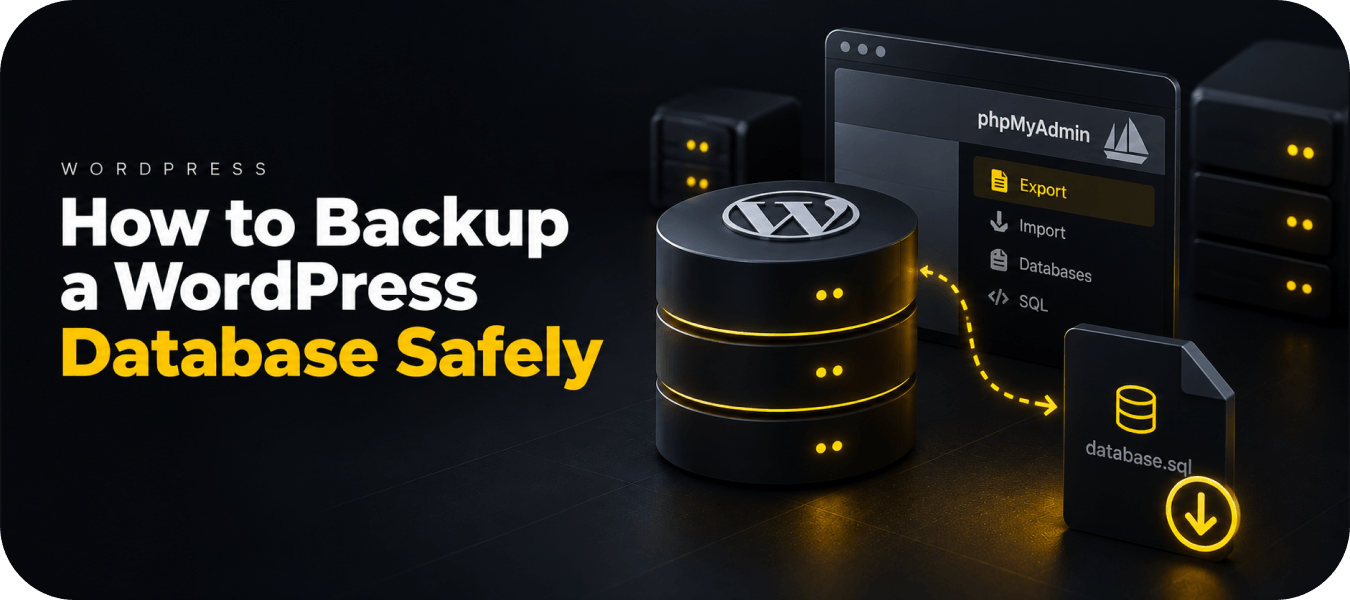
Step 2: Export the Database
- Open phpMyAdmin
- Select your WordPress database
- Click Export → Quick → SQL
Now you have a full backup copy.
Where Manual Backups Fail
- Easy to forget
- Easy to miss files
- No scheduling
- No quick restore
Manual backups work — but they don’t scale, and they don’t protect you from human error.
Method 2: Automatic Backups (The Modern Standard)
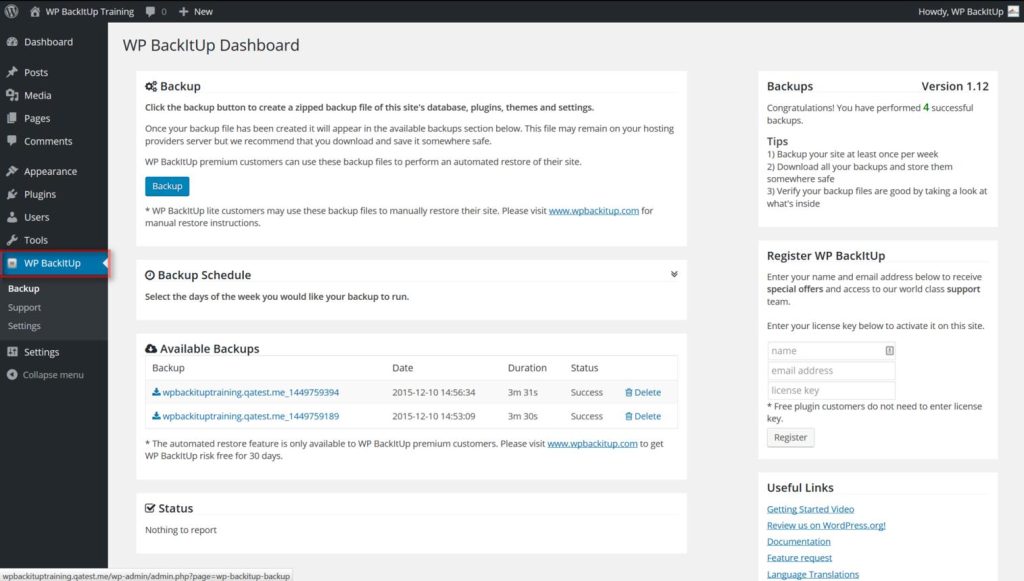
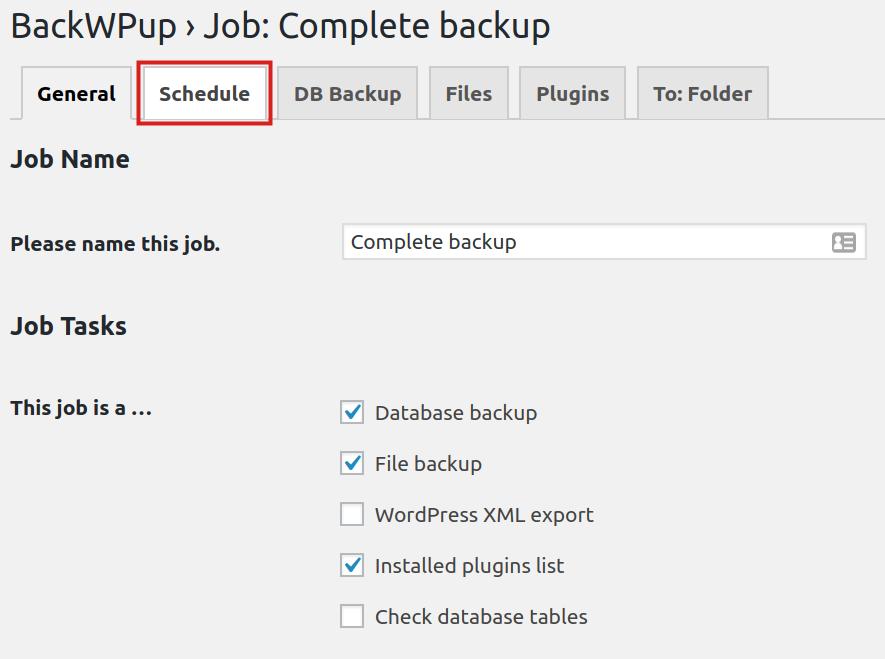
Today, most site owners rely on automation — and for good reason.
With a plugin like BackupWP, backups happen quietly in the background.
Step-by-Step Setup
- Install and activate BackupWP
- Choose a backup schedule (daily, weekly, real-time)
- Select storage (cloud recommended)
- Start your first backup
From that point on, your site is protected automatically.
Why Automatic Backups Win
- No manual work
- Scheduled protection
- Safer storage (off-site)
- One-click restore
👉 It’s not just easier — it’s significantly more reliable.
How Often Should You Backup Your Site?
There’s no universal answer — it depends on how often your content changes.
| Website Type | Recommended Backup Frequency |
| Personal blog | Weekly |
| Business website | Daily |
| eCommerce / WooCommerce | Daily or real-time |
If your site updates daily, your backups should too.
The Most Common Backup Mistakes
Even experienced users get this wrong.
- No regular backup schedule
- Backups stored on the same server (risky)
- No restore testing
- Partial backups (files only or database only)
A backup is only useful if it actually works when you need it.
How to Restore a WordPress Site from Backup
Restoring manually requires:
- Uploading files via FTP or hosting panel
- Importing the database in phpMyAdmin
- Updating configuration if needed
This can be stressful — especially during downtime.
With BackupWP:
Restore your entire site in one click.
Pro Tips (From Real-World Experience)
- Always store backups in multiple locations
- Use cloud storage, not just local files
- Keep at least 7–30 backup versions
- Test your restore process before you need it
Final Thoughts
Backups are one of the few things in WordPress that you never notice — until it’s too late.
Manual backups still work, but they rely on discipline.
Automatic backups remove that risk entirely.
If your website matters, automation isn’t optional — it’s the standard.
FAQ
The easiest way is using a backup plugin like BackupWP, which allows you to automate backups and restore your site in one click without technical knowledge.
You can manually back up your site by downloading files via cPanel or FTP and exporting your database through phpMyAdmin. However, this method requires technical steps.
It depends on your site activity. Blogs can be backed up weekly, while business or eCommerce sites should be backed up daily or in real time.
Backups should be stored off-site, preferably in cloud storage. Storing them only on your server is risky because server failures can delete both your site and backups.
Yes, but it requires manually uploading files and importing the database. This process is more complex and time-consuming than using a plugin.
Without backups, you risk losing all your content, data, and SEO rankings permanently if your site crashes or gets hacked.


Comments
Thank you for your review!
Your review has been submitted for moderation.
Write a review or ask a question