How to Restore WordPress from Backup: A Step-by-Step Guide

Introduction
A WordPress backup is your safety net when something goes wrong. Whether your website becomes inaccessible after an update, files are accidentally deleted, or a server issue causes data loss, a recent backup can help you restore your site and get it running again with minimal downtime.
Some of the most common situations that require a restore include:
- A plugin or theme update causes your website to break.
- Your site is compromised by malware or unauthorized changes.
- Important files, media, or database records are accidentally deleted.
- A website migration does not complete successfully.
- A hosting or server failure results in data loss or corruption.
The exact restoration process depends on how your backup was created and where it is stored. For example, restoring from a backup plugin differs from restoring files manually via FTP or using a hosting provider’s backup system. If your backups are managed through BackupWP Cloud, you can restore your website directly from your available cloud backups using the service’s restoration workflow, without having to manually manage backup files.
In this guide, we’ll walk through the most common WordPress restore methods so you can choose the one that matches your backup setup.
What You’ll Need Before Restoring
Before you begin restoring your WordPress website, make sure you have access to the resources required for your chosen recovery method.
A Recent Backup
Ideally, you should restore from the most recent backup created before the issue occurred. If multiple restore points are available, identify the version that contains the last known working state of your website.
Access to Your Hosting Account
You’ll typically need access to your hosting control panel or WordPress hosting dashboard, especially if you’re restoring files or using your host’s backup tools.
FTP or SFTP Credentials (for Manual Restores)
If you’re restoring your website manually, you’ll need FTP or SFTP access to upload WordPress files and replace damaged or missing content.
Database Access
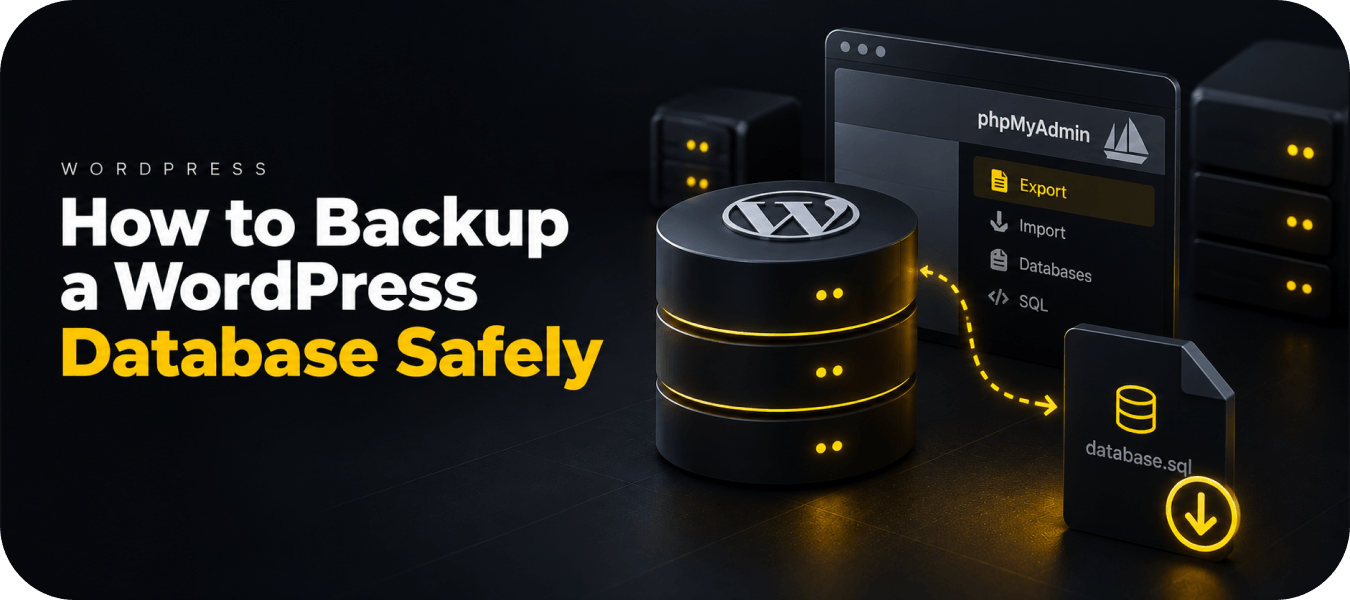
For manual database restoration, you’ll need access to your MySQL database through tools such as phpMyAdmin or another database management interface provided by your hosting provider.
Enable Maintenance Mode
If your website is still accessible, it’s a good idea to place it in maintenance mode before starting the restore. This prevents visitors from interacting with the site while files and the database are being replaced.
Create a Backup of the Current Site
Even if your website isn’t working correctly, creating a backup of its current state is recommended whenever possible. It provides an additional restore point in case you need to recover recently added content or undo the restoration later. Many backup solutions, including cloud-based services, allow you to create a new backup before starting the restore process.
Understanding WordPress Backups
Not all WordPress backups are the same. The restoration process depends on what was backed up and how the backup was created. Understanding the different backup types helps you choose the correct recovery method and avoid restoring more data than necessary.
In most cases, you’ll encounter three types of backups: full backups, database backups, and file backups.
Full Backup
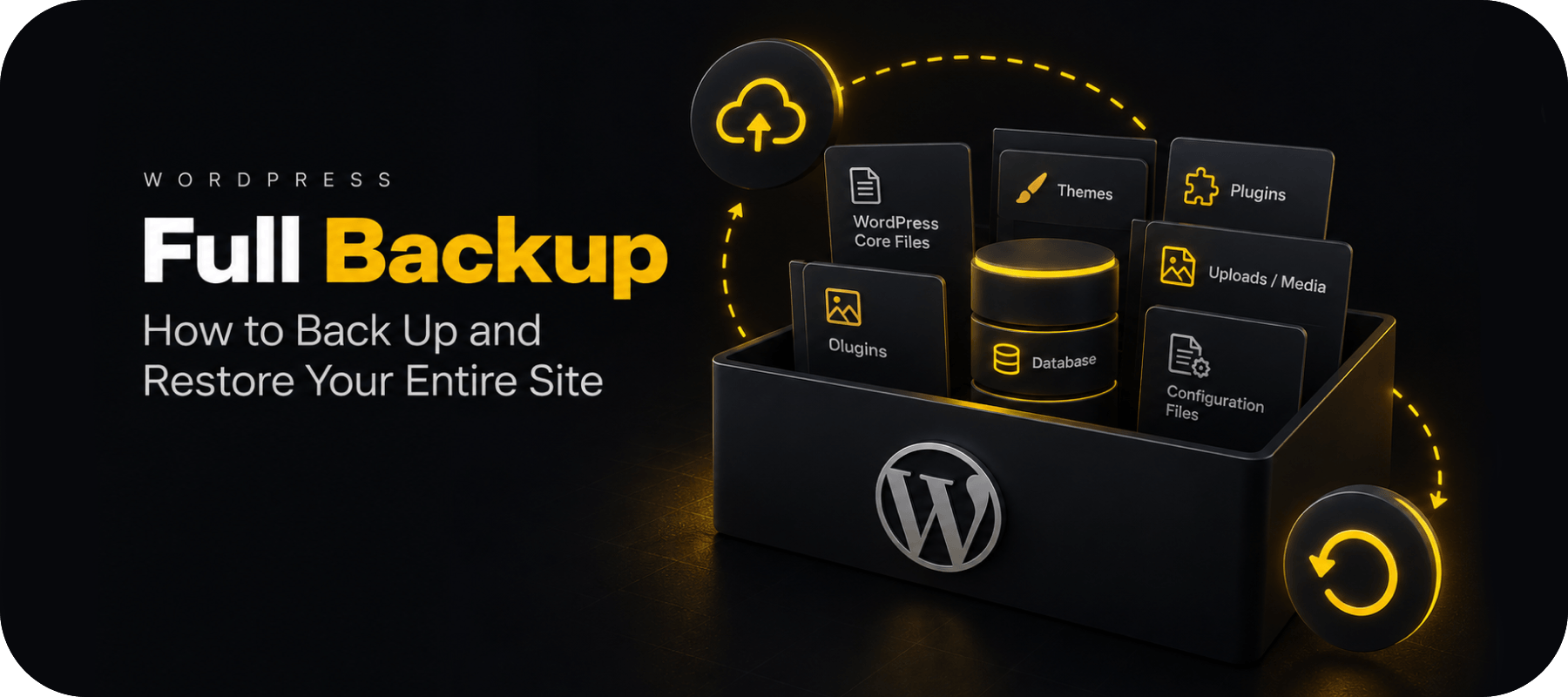
A full backup is the most comprehensive option. It includes everything needed to restore your website to a previous working state.
A typical full backup contains:
- WordPress database
- WordPress core files
- Themes
- Plugins
- Media uploads
- Configuration files
- Other website assets
If your website is completely broken or you’ve migrated to a new server, a full backup is usually the fastest and safest recovery option.
Database Backup
A database backup contains your website’s dynamic content rather than the files that make up WordPress itself.
This usually includes:
- Posts
- Pages
- Comments
- Users
- Settings
- Menus
- Widgets
- Plugin configuration stored in the database
Database backups are useful when content has been lost or configuration changes need to be reversed without replacing themes or uploaded files.
File Backup
A file backup includes the files stored on your server but does not contain your MySQL database.
It typically includes:
- Themes
- Plugins
- Media uploads
- WordPress core files
- Configuration files
This type of backup is useful if files become corrupted or are accidentally deleted while the database remains intact.
Backup Comparison
| Backup Type | Database | Themes | Plugins | Uploads | WordPress Core | Best Used For |
| Full Backup | ✓ | ✓ | ✓ | ✓ | ✓ | Complete website recovery |
| Database Backup | ✓ | — | Plugin settings only | — | — | Recover content or settings |
| File Backup | — | ✓ | ✓ | ✓ | ✓ | Restore files without affecting content |
When Should You Restore a Backup?
Restoring a backup isn’t always the first solution, but it’s often the fastest way to recover a stable version of your website when troubleshooting would take longer or risk making things worse.
Common situations include:
Plugin Conflict
A newly installed or updated plugin may trigger fatal errors, break layouts, or make the WordPress admin inaccessible. Restoring the previous backup returns the site to its last working state.
Failed WordPress Update
Although WordPress updates are generally reliable, interrupted updates or compatibility issues can leave a website partially updated and unstable.
Malware Infection
If malicious code has modified your website, restoring a clean backup created before the infection is often the quickest recovery method. Be sure to remove the underlying vulnerability before bringing the site back online.
Accidental Deletion
Files, media, database records, or even entire pages can be deleted unintentionally. Restoring from backup can recover this content if a recent restore point is available.
Migration Problems
Website migrations don’t always go as planned. If a migration causes broken functionality, missing content, or configuration issues, restoring the original site allows you to start again from a known working version.
Corrupted Database
Unexpected server failures, interrupted imports, or plugin errors can corrupt the WordPress database, causing errors or preventing the website from loading.
Broken Theme
A faulty theme update or incorrect customization can make the frontend unusable. Restoring a backup is often faster than manually identifying every change.
Method 1: Restore WordPress Using a Backup Plugin (Recommended)
For most website owners, restoring a backup through a WordPress backup plugin is the easiest and safest option. Most backup plugins automate both the backup and restoration process, reducing the risk of human error.
The exact interface varies between plugins, but the workflow is generally similar.
Step 1: Log in to WordPress
If your website is still accessible, sign in to the WordPress dashboard using an administrator account.
If you can’t access the dashboard, you may need to use your hosting provider’s backup tools or perform a manual restoration instead.
Step 2: Open Your Backup Plugin
Navigate to the backup plugin installed on your website. Depending on the solution you’re using, this may be found under Settings, Tools, or its own menu in the WordPress dashboard.
Many backup plugins display a list of available restore points together with the backup date and included components.
Step 3: Select a Restore Point
Choose the backup created before the issue occurred.
If multiple restore points are available, select the most recent backup that represents a known working version of your website.
Step 4: Choose What to Restore
Some backup solutions allow you to restore the entire website, while others let you restore individual components such as:
- Database
- Themes
- Plugins
- Media uploads
- WordPress files
If you’re only fixing a content issue, restoring just the database may be sufficient. For major failures, a complete restore is usually recommended.
Step 5: Start the Restoration
Begin the restore process and allow the plugin to replace the selected files and database content.
Avoid making changes to the website while the restoration is in progress.
Step 6: Wait for Completion
Depending on the size of your website, the restore process may take anywhere from a few minutes to considerably longer for large websites with extensive media libraries.
Do not interrupt the process until the plugin confirms that restoration has completed successfully.
Step 7: Test Your Website
After the restore finishes, verify that both the frontend and WordPress admin load correctly.
Check that pages, images, forms, menus, and any critical functionality work as expected.
Note: Most popular WordPress backup plugins, including cloud-based backup solutions, provide a guided restore process that automates much of the recovery workflow. The available restoration options will depend on the plugin or service you’re using.
Method 2: Restore WordPress from a Hosting Backup
Many hosting providers automatically create daily or weekly website backups. If your host offers this feature, restoring your website may only take a few minutes and usually doesn’t require any technical knowledge.
The exact steps vary between hosting providers, but the general process is similar.
Step 1: Log in to Your Hosting Control Panel
Access your hosting account using your provider’s dashboard or control panel, such as cPanel, Plesk, or a custom hosting interface.
Step 2: Open the Backup Section
Locate the backup or recovery section. Most providers organize backups by date, allowing you to select a restore point created before the issue occurred.
Step 3: Choose What to Restore
Depending on your hosting provider, you may be able to restore:
- The entire website
- Website files only
- Database only
- Individual email accounts (if included in the backup)
Select the option that best matches your recovery needs.
Step 4: Start the Restore
Confirm the restoration. Your hosting provider will replace the selected data with the contents of the chosen backup.
During this process, your website may be temporarily unavailable.
Step 5: Verify the Website
Once the restoration has completed, visit both the frontend and the WordPress dashboard to ensure everything is functioning correctly.
Method 3: Restore WordPress Manually Using FTP and phpMyAdmin
Manual restoration provides complete control over the recovery process and is often used when you can’t access the WordPress dashboard or when automated restore options are unavailable.
Before proceeding, ensure you have a complete backup containing both the website files and the database.
Step 1: Download Your Backup
Locate the backup files stored on your computer or cloud storage and extract the archive if necessary.
You should have:
- WordPress files
- SQL database export
- Any additional configuration files included in the backup
Step 2: Upload Website Files
Connect to your server using an FTP or SFTP client.
Replace the existing WordPress files with the backup version. Depending on your situation, you may overwrite the current files or remove the damaged installation before uploading the backup.
Take extra care not to upload files to the wrong directory.
Step 3: Import the Database
Open phpMyAdmin from your hosting control panel.
Select the WordPress database.
If necessary, remove the corrupted tables or empty the existing database before importing the SQL backup.
Import the backup file and wait for the process to complete.
Step 4: Check the wp-config.php File
Verify that the database settings match your hosting environment.
Check the following values:
- Database name
- Database username
- Database password
- Database host
- Table prefix
Incorrect database credentials will prevent WordPress from connecting to the database.
Step 5: Clear Website Caches
Clear any active caching layers, including:
- WordPress cache plugins
- Server-side cache
- CDN cache
- Browser cache
This ensures visitors receive the restored version of your website instead of outdated cached files.
Step 6: Log in to WordPress
Visit the WordPress login page and confirm that you can successfully access the admin dashboard.
Browse several pages and verify that your content, images, and functionality have been restored correctly.
Method 4: Restore Only the Database
In some situations, restoring the entire website isn’t necessary. If your WordPress files are intact but your content or settings have been affected, restoring only the database may solve the problem.
This approach is commonly used when:
- Posts or pages have disappeared
- Website settings have been accidentally changed
- A plugin has modified database options incorrectly
- A failed import corrupted content
- User accounts or menus have been deleted
Import the database backup using phpMyAdmin or another database management tool, then verify that your website displays the expected content.
Because file restoration isn’t involved, your themes, plugins, and uploaded media remain unchanged.
Method 5: Restore Only Media Files
If images or uploaded documents are missing while the rest of your website works normally, you may only need to restore the wp-content/uploads directory.
This method replaces media files without affecting:
- Posts
- Pages
- Database content
- Plugin settings
- Themes
Upload the backed-up wp-content/uploads folder to your server using FTP or your hosting file manager, replacing missing or damaged files.
Once complete, clear any caches and verify that images load correctly throughout the website.
How to Restore a WordPress Site After Malware
Restoring a backup after a malware infection requires more than simply replacing files. If the vulnerability that allowed the attack remains, the website may become compromised again.
A recommended recovery process includes the following steps:
- Scan the website to identify malicious files and suspicious code.
- Restore a clean backup that was created before the infection occurred.
- Change all administrator, hosting, FTP, and database passwords.
- Regenerate your WordPress security salts to invalidate existing sessions.
- Update WordPress core, plugins, and themes to the latest secure versions.
- Review administrator accounts and remove any unauthorized users.
- Monitor your website after restoration to ensure no malicious activity returns.
If you suspect the backup itself may already contain malware, avoid restoring it until it has been properly inspected.
Common Restore Problems and Fixes
Even a successful restoration can leave behind minor issues. Here are some of the most common problems and how to resolve them.
White Screen of Death
Usually caused by a plugin, theme, PHP error, or incompatible files.
Possible fixes:
- Disable plugins
- Switch to a default theme
- Enable WordPress debugging
- Check PHP error logs
Error Establishing a Database Connection
WordPress cannot connect to the database.
Possible fixes:
- Verify database credentials in wp-config.php
- Confirm the database server is running
- Repair or restore the database
Missing Images
Media files may not have been included in the restored backup.
Possible fixes:
- Restore the wp-content/uploads directory
- Clear cache
- Regenerate thumbnails if necessary
Broken Permalinks
Pages return 404 errors even though they exist.
Possible fix:
Go to Settings → Permalinks and simply click Save Changes to regenerate rewrite rules.
Login Loop
WordPress repeatedly redirects back to the login page.
Possible fixes:
- Clear browser cookies
- Clear cache
- Disable conflicting plugins
- Verify the WordPress Address and Site Address settings
Mixed Content Warnings
After moving between HTTP and HTTPS, browsers may report insecure resources.
Possible fixes:
- Update internal URLs
- Replace HTTP links
- Verify SSL configuration
Plugin Conflicts
Some plugins may not be compatible with the restored version of WordPress.
Possible fixes:
- Disable plugins one by one
- Update incompatible plugins
- Restore a newer backup if available
How to Verify the Restore Was Successful
Before considering the recovery complete, perform a full website check.
Use this checklist:
- ✓ Homepage loads correctly
- ✓ WordPress admin is accessible
- ✓ Contact forms work properly
- ✓ Images display without errors
- ✓ Navigation menus function correctly
- ✓ SSL certificate is active
- ✓ Site search returns expected results
- ✓ WooCommerce checkout and account pages work correctly (if applicable)
- ✓ Transactional emails are being sent successfully
- ✓ Important plugins function as expected
Testing these key areas helps identify any remaining issues before visitors encounter them.
Tips to Avoid Future Restore Problems
Although restoring a backup can recover your website, preventing problems in the first place is always preferable.
Follow these best practices:
- Schedule automatic backups instead of relying on manual ones.
- Store backups in a secure off-site or cloud location rather than only on the web server.
- Keep multiple restore points so you can recover from issues that aren’t discovered immediately.
- Test your backups periodically to confirm they can be restored successfully.
- Use a staging environment to test major updates before applying them to your live website.
- Keep WordPress core, themes, plugins, and PHP up to date, while reviewing compatibility before installing major updates.
- Avoid deleting old backups until newer ones have been verified.
With a reliable backup strategy and tested recovery process, restoring a WordPress website becomes a routine maintenance task instead of a stressful emergency.
FAQ
The easiest way is to use the restore feature included with your backup solution. Simply choose a restore point, select what you want to recover, and start the restoration process. If you don’t have a backup plugin, you can restore your website manually using FTP and a database management tool or use backups provided by your hosting company.
Yes. You can restore WordPress manually if you have copies of your website files and database. This typically involves uploading the files via FTP or SFTP and importing the SQL database through phpMyAdmin.
Yes. Restoring a backup usually replaces your current files, database, or both with the selected restore point. Any changes made after that backup was created may be lost, so it’s recommended to create a backup of the current site before restoring whenever possible.
Yes. If your website files are working correctly but your content or settings are damaged, you can restore only the database. This is useful when posts, pages, menus, or plugin settings need to be recovered without replacing themes or media files.
Yes. If only your media library is affected, you can restore the wp-content/uploads directory without modifying your database or the rest of your website files.
The restoration time depends on the size of your website and the restore method. Small websites may take only a few minutes, while larger sites with extensive media libraries can take considerably longer.
Start by clearing all caches, checking your database connection, verifying the wp-config.php settings, and disabling plugins to identify conflicts. If the issue persists, try restoring a different backup created before the problem occurred.
Yes, provided you have a clean backup created before the infection. After restoring, you should update WordPress, themes, and plugins, change all passwords, review administrator accounts, and scan the website to ensure the malware has been completely removed.
For better protection, backups should be stored separately from your website, such as in secure cloud storage or another off-site location. This ensures your backups remain available even if the hosting server experiences an issue.
The ideal frequency depends on how often your website changes. Websites that publish new content or process orders daily should be backed up at least once a day, while less frequently updated sites may only require weekly backups.