How to Backup a WordPress Database Safely

Your WordPress database contains the information that changes when you publish a post, edit a page, add a user, receive a comment, change a setting, or process an order.
Creating a database backup gives you a snapshot of that information at a particular point in time.
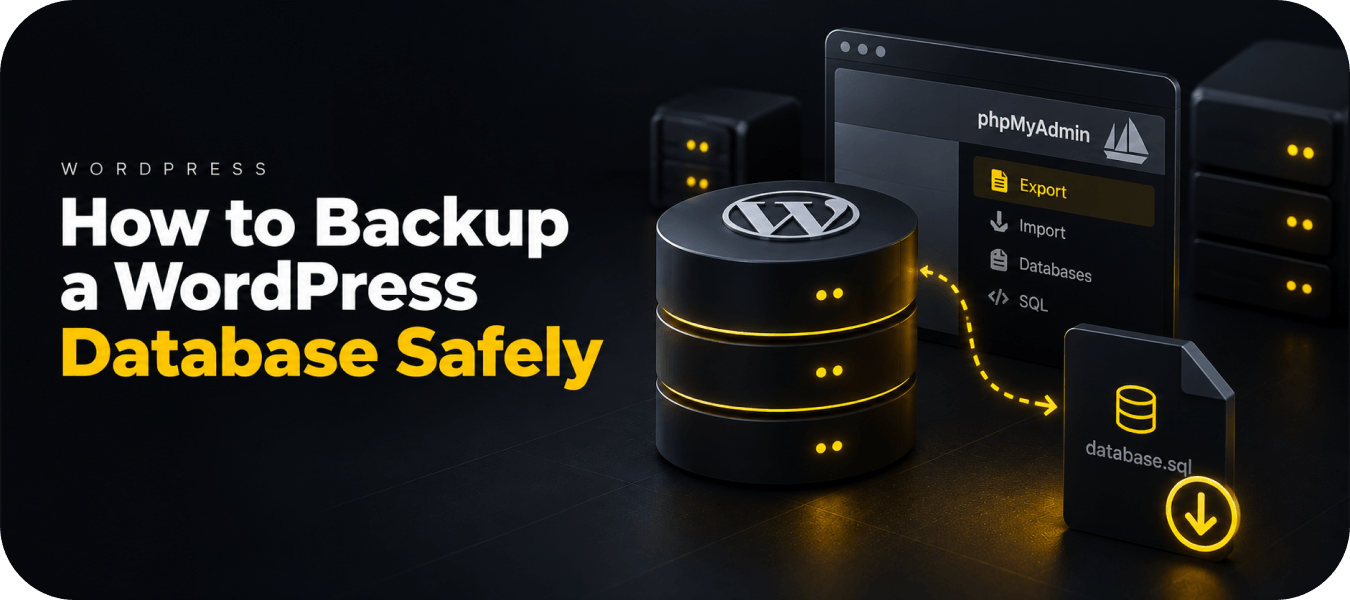
The quickest manual method is to export the database as an SQL file through phpMyAdmin. Developers can also create database dumps with WP-CLI, while automated backup tools can create and retain database snapshots without requiring a manual export each time.
Below, we’ll look at how each approach works — starting with what you are actually backing up.
What Is Inside Your WordPress Database?
WordPress does not store your website as a collection of HTML pages.
When someone visits a page, WordPress retrieves information from a database and combines it with your theme, plugins and other files to generate the page.
A standard WordPress installation uses tables including:
| Table | What it typically contains |
| wp_posts | Posts, pages, revisions and custom post types |
| wp_postmeta | Additional information associated with posts |
| wp_users | User accounts |
| wp_usermeta | User metadata and permissions |
| wp_options | Site settings, plugin settings and configuration |
| wp_comments | Comments |
| wp_commentmeta | Additional comment information |
| wp_terms | Categories, tags and other taxonomy terms |
| wp_term_taxonomy | Taxonomy relationships |
| wp_term_relationships | Connections between content and taxonomy terms |
The wp_ prefix is the WordPress default, but your site may use a different database prefix.
Plugins can create their own tables as well. WooCommerce, security plugins, form plugins and other applications may add significant amounts of additional data.
That is why a database backup should normally include all tables belonging to the WordPress installation, rather than only the default WordPress tables.
When Should You Backup the WordPress Database?
Database backups are particularly useful immediately before making a change that could affect stored data.
For example:
- updating WordPress;
- updating a plugin that modifies database tables;
- installing or removing a major plugin;
- bulk-editing content;
- changing site URLs;
- running database optimization;
- migrating WordPress;
- performing search-and-replace operations;
- making changes directly in phpMyAdmin.
They are also useful as regular snapshots of active websites.
Imagine a WooCommerce store that received 30 orders today. The site’s theme and images may not have changed at all, but the database has changed significantly.
In situations like this, database backups can provide more frequent recovery points without necessarily creating a new copy of every static website file each time.
Find the Correct WordPress Database Before You Start
A hosting account may contain several databases, particularly if you run multiple WordPress installations.
Before exporting anything, confirm which database belongs to the site.
Open your WordPress wp-config.php file and find:
define( ‘DB_NAME’, ‘your_database_name’ );
The value of DB_NAME identifies the database WordPress is using.
You may also see:
DB_USER
DB_PASSWORD
DB_HOST
These are connection details. You generally do not need to change them to create a backup.
Do not edit database credentials simply to perform an export.
Once you know the correct database name, you can safely identify it in phpMyAdmin or another database management interface.
How to Backup a WordPress Database Using phpMyAdmin
phpMyAdmin is available with many WordPress hosting environments and provides a graphical interface for working with MySQL or MariaDB databases.
Step 1: Open phpMyAdmin
Log in to your hosting control panel and open phpMyAdmin.
The exact location varies by host.
You should see available databases in the left-hand navigation.
Select the database you identified in wp-config.php.
The main panel should now display its tables.
Before continuing, quickly check that the database contains recognizable WordPress tables such as wp_posts, wp_options and wp_users — or equivalent tables using your site’s custom prefix.
Step 2: Open the Export Tool
Select Export from the top navigation.
phpMyAdmin usually offers two export methods:
Quick and Custom.
For a straightforward complete database backup, Quick export is normally sufficient.
Choose:
Export method: Quick
Format: SQL
Then select Export or Go, depending on your phpMyAdmin version.
Your browser will download an .sql file.
That file is your database backup.
Quick vs Custom Export in phpMyAdmin
For most simple backups, you do not need to change dozens of export settings.
However, the Custom option becomes useful when you need more control.
It allows you to:
- choose specific tables;
- change output options;
- enable compression;
- adjust SQL generation settings;
- control how database objects are exported.
For a normal disaster-recovery backup, you generally want all WordPress tables, including tables created by plugins.
Selective exports are better suited to specific administrative or development tasks.
For example, exporting only wp_posts is not equivalent to backing up your WordPress database. Posts may depend on metadata, taxonomy relationships, plugin tables and other records elsewhere in the database.
Should You Compress a WordPress Database Backup?
Database exports can become large on established websites.
phpMyAdmin may allow you to compress the export using formats such as gzip.
Compression can be useful because SQL files often compress very efficiently.
For example, a large plain-text SQL export may become substantially smaller when compressed, making it easier to:
- download;
- upload;
- archive;
- transfer between servers;
- retain multiple versions.
The important thing is to know which compression format you used and confirm that your restoration process can read it.
Check the SQL Backup Before You Rely on It
After downloading the database, don’t immediately assume the backup is usable.
Start with a few simple checks.
First, make sure the downloaded file is not empty.
A database backup of only a few bytes is an obvious warning sign for a normal WordPress site.
Next, check that the file extension is what you expected, such as:
website-backup-2026-09-07.sql
or a compressed equivalent.
For a plain SQL file, opening the beginning of the file in a text editor should normally reveal SQL statements and information about the exported database.
You don’t need to understand every statement.
The goal is simply to verify that you downloaded an actual database export rather than an error page, empty file or unrelated download.
Use a clear naming convention too:
domain-database-YYYY-MM-DD.sql
This becomes surprisingly important once you have multiple websites and multiple restore points.
How to Backup a WordPress Database With WP-CLI
If you have SSH access and WP-CLI installed, you can create the same type of database export without opening phpMyAdmin.
From the WordPress installation directory, run:
wp db export
WP-CLI will create an SQL export.
You can specify your own filename:
wp db export backup-before-update.sql
This is particularly convenient for developers working directly on servers.
For example, before a potentially risky database operation, you can create a clearly labelled snapshot:
wp db export before-search-replace.sql
Then perform the change.
WP-CLI also makes database exports easier to incorporate into scripts and development workflows.
One caution: creating the SQL file on the server does not automatically make it an offsite backup.
If you need the export for disaster recovery rather than just a temporary rollback point, copy it to independent storage.
Manual Database Backups Are Snapshots, Not a Backup System
A phpMyAdmin export is perfectly valid as a database backup.
The weakness is not the SQL file. The weakness is the process around it.
You have to remember to:
- create the export;
- download it;
- label it correctly;
- move it somewhere safe;
- keep older versions where necessary;
- repeat the process whenever a new recovery point is needed.
For a backup immediately before an update, this may be completely reasonable.
For a website that changes every day, it becomes less practical.
This is where automation becomes useful.
Automating WordPress Database Backups
Instead of manually exporting the database every time it changes, an automated backup system can create recovery points on a schedule.
With BackupWP Cloud, the database can be protected as part of an automated WordPress backup workflow and stored in offsite cloud storage.
This changes the process from:
Remember → log in → export → download → move → organize
to an automated backup workflow where recovery data is created and retained without requiring a new manual SQL export each time.
That is particularly useful for websites where database changes happen without an administrator actively editing WordPress.
A WooCommerce order, new user registration or submitted form can change the database even when nobody on your team has logged into the WordPress dashboard.
How to Restore a WordPress Database From an SQL Backup
A database export becomes useful when you need to put that data back.
If you created an SQL backup through phpMyAdmin, you can usually restore it using the Import function.
The basic workflow is:
- Open phpMyAdmin.
- Select the correct database.
- Open Import.
- Select your SQL backup.
- Start the import.
- Check that the operation completes without errors.
- Test the WordPress site.
With WP-CLI, an SQL file can be imported using:
wp db import backup.sql
But restoration requires more caution than export.
Importing an old database can overwrite newer website data.
Suppose you restore yesterday’s database on an active WooCommerce store. Orders placed since that backup may no longer exist in the restored database.
The same applies to:
- new users;
- comments;
- form submissions;
- content changes;
- plugin settings;
- membership activity.
Always confirm the date of the recovery point and understand what has changed since it was created.
What a Database Backup Does NOT Save
This is one of the most important distinctions to understand.
An SQL database backup does not normally contain the physical files in your WordPress installation.
For example, your database may contain a record describing an uploaded image:
product-photo.jpg
But the actual image is stored as a file under your WordPress uploads directory.
The same applies to themes and plugins.
Therefore:
Database backup = WordPress data
Full WordPress backup = database + website files
If your goal is to protect the entire website against complete server loss, a database export alone is not sufficient.
Read our WordPress Full Backup Guide for the complete backup process.
Which WordPress Database Backup Method Should You Use?
The right method depends primarily on why you’re creating the backup.
| Situation | Recommended approach |
| Before updating a plugin | Manual database snapshot |
| Before database changes | phpMyAdmin or WP-CLI |
| Development work | WP-CLI |
| One-time site migration | SQL export |
| Regular production backups | Automated backups |
| Active WooCommerce site | Frequent automated recovery points |
| Disaster recovery | Automated backup + offsite storage |
There is nothing inherently wrong with manual backups.
The question is whether a manual process matches the frequency and importance of your website’s data.
For an occasional pre-update snapshot, it often does.
For ongoing protection of an active production website, automation and independent storage provide a more resilient approach.
The Bottom Line
If you need a one-time WordPress database backup, exporting the complete database through phpMyAdmin is one of the simplest methods. Developers with command-line access can accomplish the same task quickly with WP-CLI.
The important part is not just creating an SQL file. Make sure you export the correct database, include all relevant WordPress and plugin tables, verify the resulting file and know which recovery point you’re using before restoring it.
For sites where the database changes frequently, repeated manual exports quickly become impractical. Automated backups, such as BackupWP Cloud, can create and retain offsite recovery points without requiring you to export and organize SQL files each time manually.
And if you need protection against losing the entire website, not just its database, combine database protection with backups of your WordPress files.
FAQ
A manual WordPress database backup is commonly exported as an .sql file. It may also be compressed into formats such as .sql.gz to reduce its size.
Yes. You can export the database independently of your website files. This is useful for creating frequent database recovery points or snapshots before database-related changes.
It can contain data created by plugins, but not the plugin files themselves. The physical plugin files are normally stored under wp-content/plugins.
It contains database records associated with media, but not the actual uploaded image files. Those are normally stored under wp-content/uploads.
Yes. If your hosting environment provides phpMyAdmin, you can export the WordPress database as an SQL file and download it to your computer.
Creating a recent backup before major WordPress, theme or plugin updates is a sensible precaution, particularly when an update may modify the database.
Yes. Automated backup tools can create database recovery points on a schedule. BackupWP Cloud can include the database in automated WordPress backups and keep recovery data offsite rather than relying only on the live hosting server.