WordPress Full Backup: How to Back Up and Restore Your Entire Site
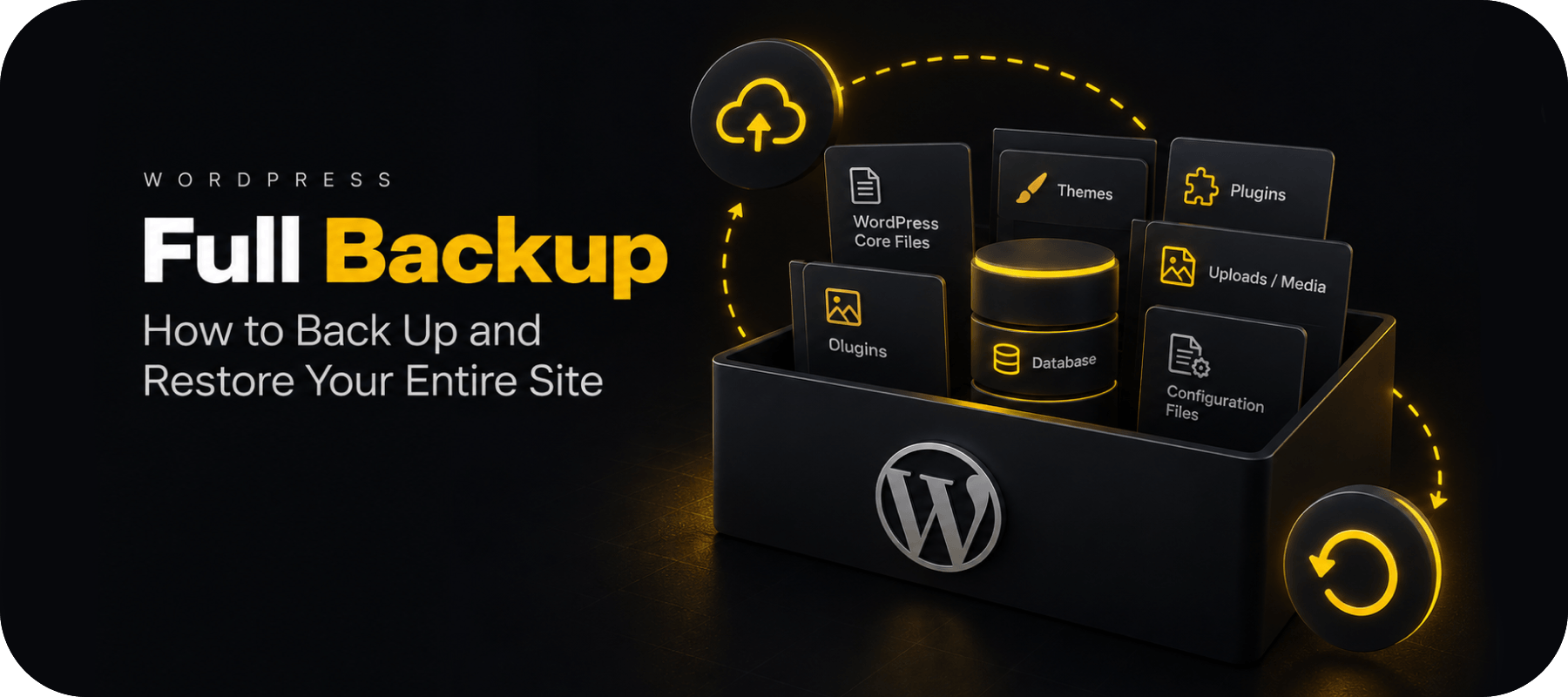

A full WordPress backup is a complete copy of everything required to rebuild your website: the WordPress database, themes, plugins, uploaded media, configuration files, and other files stored on the server.
That distinction matters. Backing up only your WordPress database does not create a complete copy of your website. Likewise, downloading your wp-content folder without the database will not preserve posts, pages, users, settings, and other database-stored information.
If your goal is to recover a broken site, move WordPress to another server, or protect it against data loss, you need both.
In short: a full WordPress backup = website files + WordPress database.
This guide explains what a complete WordPress backup should include, how to create one manually or automatically, where backups should be stored, how often to create them, and how to make sure your backup can actually be restored when you need it.
What Is a Full WordPress Backup?
A full WordPress backup is a recoverable copy of both the files and database that make up a WordPress website.
A complete backup normally includes:
- WordPress core files
- the wp-content directory
- themes
- plugins
- uploaded images and other media
- wp-config.php
- .htaccess and other server-level files where applicable
- the complete WordPress database
The database contains much of the information that makes your website unique, including posts, pages, comments, users, settings, menus, plugin data, and WooCommerce data if you operate an online store.
The files contain the physical resources WordPress uses, such as themes, plugins and media.
You need both components for a complete restoration.
Full WordPress Backup vs Database Backup
A database backup and a full-site backup are not the same thing.
| Backup type | What it contains | Can it restore the entire site? |
| Database backup | Posts, pages, users, settings and other database records | No |
| Files backup | Themes, plugins, media and WordPress files | No |
| Full WordPress backup | Database + all required website files | Yes |
A database-only backup can be useful when you need frequent snapshots of rapidly changing content. However, it should not be treated as a replacement for a full WordPress backup.
If the site is lost completely and you only have the database, your uploads, theme files, plugins and configuration may still be missing.
What Should a WordPress Full Backup Include?
If you want to know whether a backup solution really creates a full backup of a WordPress site, check whether it captures the following components.
1. WordPress Database
The database is one of the most important parts of the backup.
Depending on the site, it can contain:
- posts and pages
- comments
- WordPress users
- site options
- menus
- categories and tags
- plugin settings
- form data
- WooCommerce orders and customer information
- custom post types and metadata
A website can still have all of its files on the server and be unusable if its database is lost.
2. wp-content
The wp-content directory normally contains the parts of WordPress most specific to your website.
That includes:
- /themes/
- /plugins/
- /uploads/
For many sites, the uploads directory is particularly valuable because it contains years of images, documents and other media that may be difficult or impossible to recreate.
3. Configuration Files
Files such as wp-config.php contain important information WordPress needs to communicate with its database and operate correctly.
Depending on the server configuration, files such as .htaccess may also contain important rewrite, redirect or security rules.
4. WordPress Core Files
WordPress core itself can usually be downloaded again from WordPress.org.
For that reason, some backup strategies prioritize unique site files and the database rather than repeatedly storing unchanged core files.
However, a true full-site backup may include the entire WordPress installation so that the site can be reproduced more closely from the saved snapshot.
How to Take a Full Backup of a WordPress Site
There are several common ways to create a full WordPress backup:
- use a WordPress backup plugin or dedicated backup service;
- create the backup manually;
- use backups provided by your hosting company;
- use an offsite or cloud backup solution.
Each method can work, but they differ significantly in automation, storage, recovery options and the amount of technical work required.
Method 1: Create a Full WordPress Backup With a Backup Plugin
For most website owners, using a dedicated WordPress backup solution is the simplest approach.
A full-site backup plugin can automatically copy the WordPress database and required files without requiring you to manually work with FTP, SSH or database administration tools.
The general process is:
- Install and activate the backup plugin.
- Select a full-site backup rather than a database-only backup.
- Make sure both files and database are included.
- Choose a backup destination.
- Start the backup.
- Verify that it completed successfully.
- Keep the backup somewhere separate from the live WordPress server.
The main advantage is automation.
Instead of relying on someone to remember to create backups, you can schedule them.
Depending on the solution, WordPress backups can also be stored in remote or cloud storage rather than only on the server hosting the website.
This matters because a backup stored exclusively on the same server as the live website can be lost alongside the website if that server fails or becomes inaccessible.
Method 2: How to Make a Full WordPress Backup Manually
You can also create a full WordPress backup without a plugin.
You will need to back up two separate components: the website files and the database.
Step 1: Back Up Your WordPress Files
Connect to your hosting account using your hosting file manager, FTP/SFTP, or another server-access method.
Locate the directory containing your WordPress installation.
Download the required website files to a secure location.
Make sure important files and directories such as wp-content, wp-config.php, themes, plugins and uploads are included.
Depending on the size of the site, downloading all files manually can take some time.
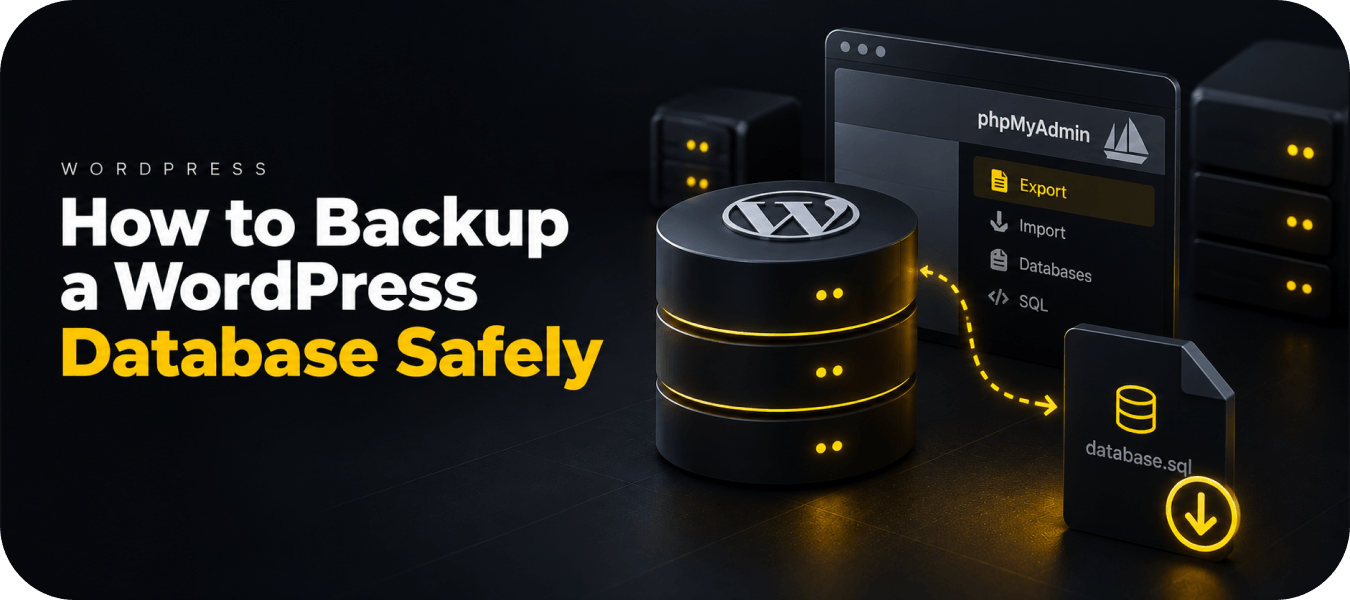
Step 2: Export the WordPress Database
Next, create a complete database export.
Many hosting environments provide phpMyAdmin or another database management interface.
In phpMyAdmin, the basic process is typically:
- Select the database used by WordPress.
- Choose Export.
- Export all required tables.
- Save the resulting SQL file.
You now have the two major components required for a full WordPress backup:
WordPress files + database export.
Keep them together and clearly label the backup with the website name and creation date.
Advantages of Manual WordPress Backups
Manual backups give you direct control over what is copied and where it is stored.
They can be particularly useful before a major one-off change, such as:
- a WordPress core update
- a theme change
- a large plugin update
- a server migration
- major development work
Disadvantages of Manual Backups
The biggest problem is consistency.
Manual backups depend on someone remembering to create them, correctly exporting all required data, transferring potentially large numbers of files and storing everything safely.
For websites that change regularly, automation is usually more practical.
Method 3: Use Your Hosting Provider’s Backup System
Many WordPress hosting providers include backups as part of their hosting plans.
This can provide a useful additional recovery layer, particularly if the host offers automated snapshots and simple restoration.
However, hosting backups should be evaluated rather than simply assumed to provide complete protection.
Check:
- how frequently backups are created;
- what exactly is included;
- how long backups are retained;
- whether backups are stored separately;
- whether you can download your own copy;
- whether restoration is self-service;
- whether database and files can be restored separately.
Maintaining an independent backup can still be valuable even when hosting backups are available.
If your website and your only backup depend on the same provider and account, a single failure or access problem could affect both.
Method 4: Store WordPress Backups Safely in the Cloud
A safer backup strategy separates your backup from the server hosting your live WordPress site.
This is commonly known as an offsite backup.
Instead of keeping the only copy inside your hosting account, the backup is transferred to another storage environment.
Possible destinations include:
- dedicated WordPress cloud backup services;
- Dropbox;
- Google Drive;
- Amazon S3 or compatible object storage;
- other remote storage providers.
The specific destination is less important than the principle:
Your live website and your only backup should not share the same single point of failure.
For users who do not want to configure and manage a separate storage provider themselves, a dedicated solution such as BackupWP Cloud can handle the offsite storage layer automatically.
With this approach, the WordPress database and website files are backed up away from the live hosting environment, so the backup does not rely entirely on the server where the website is running.
This makes cloud backup particularly useful if the original hosting account experiences:
- server failure;
- accidental file deletion;
- a broken update;
- malware or a security incident;
- account access problems;
- hosting migration issues.
A dedicated cloud backup system can also simplify recovery because the backup files, database and restore process are handled as part of the same workflow rather than as separate manual tasks.
Where Should You Store WordPress Backups?
The safest approach is to avoid keeping the only backup on the same server as your WordPress website.
There are several possible storage models.
Local Storage
You can download a backup to your own computer or external drive.
This gives you direct ownership of the copy, but it still requires you to manage storage, security and retention manually.
Third-Party Cloud Storage
Services such as Dropbox, Google Drive or Amazon S3 can provide remote storage.
This can be an effective solution if your backup plugin supports the destination and you are comfortable managing the cloud account yourself.
Dedicated WordPress Cloud Backup
A dedicated service such as BackupWP Cloud combines WordPress backup creation and offsite storage in one system.
This removes the need to manually download backup archives or configure a separate storage account for every website.
The main benefit is separation.
If the live site becomes unavailable, the backup still exists outside the hosting environment and can be used for recovery.
The 3-2-1 Backup Principle
For important websites, maintaining more than one backup copy provides additional protection.
A widely used concept is the 3-2-1 backup strategy:
- keep three copies of important data;
- use two different types or locations of storage;
- keep at least one copy offsite.
You do not necessarily need to apply this literally to every small WordPress website.
However, the underlying idea is valuable:
Do not rely on one server, one backup and one provider.
For example, you might have:
- the live WordPress website;
- automated backups stored in BackupWP Cloud;
- an occasional downloaded copy kept separately.
That gives you more than one recovery path if something goes wrong.
How Often Should You Create a Full WordPress Backup?
There is no universal schedule.
Backup frequency should depend on how much data you are prepared to lose.
For a mostly static website that changes once a month, daily full backups may be unnecessary.
For an active WooCommerce store, membership website or publishing platform, losing even several hours of database activity could mean losing orders, registrations or content.
A practical starting point is:
| Website type | Suggested backup frequency |
| Static brochure website | Weekly or after changes |
| Regularly updated blog | Daily |
| Active business website | Daily |
| WooCommerce store | Daily or more frequent database backups |
| High-activity membership website | Multiple database backups per day may be appropriate |
The important question is not simply:
“How often should WordPress be backed up?”
Instead, ask:
“If the site failed right now, how much data could we afford to lose?”
Your backup schedule should reflect the answer.
Full Backups vs Incremental Backups
Creating a complete copy of a large WordPress site every time can consume significant storage, bandwidth and server resources.
Incremental backups solve part of this problem.
A full backup creates a complete baseline copy of the site.
An incremental backup then saves only data that has changed since an earlier backup.
For example, imagine a WordPress site contains 20 GB of data but only 200 MB changes today.
Creating another complete 20 GB copy every time is inefficient.
An incremental system can instead capture the changed data while retaining the information required to reconstruct the website from the available backup chain.
This can make frequent backups much more practical for larger WordPress installations.
BackupWP can use this type of approach to reduce unnecessary repeat processing while still maintaining recoverable backup data in offsite cloud storage.
For regularly updated websites, this combination of full baseline backups + incremental changes can be more efficient than creating a completely new copy of every site file on every backup run.
Common WordPress Backup Mistakes
Backing Up Only the Database
The database does not contain your theme files, plugins or uploaded media.
A database export alone is not a full WordPress backup.
Backing Up Only wp-content
The opposite problem is also common.
You may have your images, plugins and themes but still be missing the database containing your content, users and settings.
Keeping Backups Only on the Website Server
This is one of the biggest weaknesses in many backup setups.
If the server fails, is compromised or becomes inaccessible, the backup may disappear together with the live website.
Offsite or cloud storage reduces this dependency.
Assuming Your Host Will Always Recover the Site
Hosting backups can be very useful, but they should not necessarily be your only recovery option.
Having an independent backup gives you another path if your hosting account itself is part of the problem.
Never Testing Restoration
A backup that cannot be restored provides little protection.
Restoration should be considered part of the backup strategy, not something to think about only after the website is already down.
Creating Backups Too Infrequently
A monthly backup may technically protect a frequently updated site, but recovering it could still mean losing several weeks of data.
Keeping Only One Restore Point
Sometimes a problem is discovered days after it begins.
If the only available backup was created after the problem occurred, it may already contain corrupted or unwanted data.
Keeping several historical restore points reduces this risk.
Plugin, Manual, Hosting or Cloud Backup: Which Should You Choose?
The best method depends on the website.
| Method | Best for | Main advantage | Main limitation |
| Backup plugin | Most WordPress sites | Automation | Storage and restore options vary |
| Manual backup | Developers and one-off backups | Maximum control | Time-consuming and easy to forget |
| Hosting backup | Additional recovery layer | Convenient | Depends on the same hosting ecosystem |
| Dedicated cloud backup | Sites needing automated offsite protection | Separate storage and simpler recovery | Requires a backup service |
These methods do not have to be mutually exclusive.
For example, you might use BackupWP Cloud as the primary automated offsite backup system while retaining hosting snapshots as an additional recovery option.
This gives you both convenience and redundancy.
Do You Need a WordPress Full Site Backup Plugin?
Not necessarily.
WordPress can be backed up manually, and many hosts provide backup functionality.
The real question is whether your current process reliably handles all of the following:
- files and database;
- automatic scheduling;
- remote or offsite storage;
- retention of multiple restore points;
- backup monitoring;
- straightforward restoration.
If you have to perform all of these tasks manually every day, a dedicated backup solution can remove a significant amount of repetitive work and reduce the risk of backups simply being forgotten.
Is Cloud Backup Safer for WordPress?
Cloud backup is not automatically safe simply because the word “cloud” is involved.
What matters is whether the backup is kept separately from the live WordPress installation and whether it remains accessible when the hosting environment fails.
A well-designed cloud backup setup can reduce several risks because it creates an independent copy of the website outside the production server.
This is especially useful when protecting against:
- server failure;
- broken WordPress updates;
- accidental deletion;
- compromised hosting accounts;
- corrupted files;
- failed migrations.
For many website owners, the practical advantage of a dedicated service such as BackupWP Cloud is that offsite storage is handled automatically rather than requiring them to configure and maintain a separate cloud storage workflow.
Final Checklist: What a Reliable WordPress Backup Should Do
Before relying on any WordPress backup setup, make sure you can answer yes to these questions:
- Does it back up the WordPress database?
- Does it back up themes, plugins and uploads?
- Does it preserve important configuration files?
- Are backups created automatically at an appropriate frequency?
- Is at least one backup stored away from the live server?
- Are multiple restore points retained?
- Can you tell when a backup fails?
- Do you know how to restore the site?
- Has the restoration process been tested?
Creating a full WordPress backup is not simply about copying files.
The goal is to maintain a recent, independent and recoverable version of the entire website.
You can create a full backup manually, use your hosting provider, connect WordPress to third-party cloud storage, or use a dedicated cloud backup service.
For website owners who want an automated option, BackupWP Cloud provides a practical approach: the WordPress files and database can be backed up to secure offsite cloud storage rather than relying on copies stored on the same hosting server.
Automated backups reduce the need for manual work, while incremental backups can avoid repeatedly processing the entire website when only part of it has changed.
Because the backup is stored separately from the hosting environment, it provides an additional recovery path if the original server fails or becomes inaccessible.
The important principle remains the same regardless of which method you choose:
Back up both the files and database, keep at least one copy safely offsite or in the cloud, and make sure the backup can actually be restored.
FAQ
A full WordPress backup is a copy of the website’s database and the files required to reconstruct the site, including themes, plugins, uploads and configuration files.
No.
WordPress stores information about media in the database, but the actual uploaded image files are normally stored in the wp-content/uploads directory.
A full backup should therefore include both.
Yes.
You can download the required WordPress files using FTP/SFTP or your hosting file manager and separately export the WordPress database.
Together, these form a full-site backup.
An offsite backup is stored outside the server or hosting environment where the live WordPress website is running.
This means that a server failure or hosting issue does not necessarily affect both the live site and the backup.
Yes, if your backup method supports Dropbox as a remote destination.
Google Drive, Amazon S3 and other cloud or object storage systems may also be used.
Alternatively, a dedicated WordPress cloud backup service can manage offsite storage directly without requiring a separate cloud account.
Back up WordPress frequently enough that the amount of data created between backups is acceptable to lose.
A static site may need weekly backups, while an active store or membership website may require daily or more frequent database backups.
It can provide a useful recovery option, but relying exclusively on the same provider that hosts the live website creates additional dependency.
Keeping an independent offsite backup provides another recovery path.
A full backup captures the complete set of protected website data.
An incremental backup captures data that changed after an earlier backup, reducing the amount of information that needs to be transferred and stored during subsequent backup operations.
Check that it includes both the database and required website files.
For critical websites, the strongest verification is successfully restoring the backup in a safe testing environment.
A strong WordPress backup strategy includes both website files and the database, creates backups automatically, keeps at least one copy offsite, retains multiple restore points and provides a tested restoration method.
Using a dedicated cloud backup service can simplify these steps by handling backup creation, remote storage and recovery through one system.