
Best WordPress Backup Plugins in 2026: An Evidence-Based Comparison

A WordPress backup plugin should do more than create a ZIP file.
A useful backup system needs to answer a much more important question:
Can you reliably recover your website when the hosting account, WordPress cnuously. Agencies may care more about migration, staging, multisite support, and managing several websites.
For this 2026 comparison, we reviewed the current capabilities, storage model, backup automation, recovery options, migration features, free plans, and pricing of the leading WordPress backup solutions.
Quick comparison: best WordPress backup plugins in 2026
| Plugin | Best suited to | Free option | Offsite / cloud backup | Automatic backups | Incremental / real-time | Migration | Restore |
| BackupWP | Simple cloud-first automated backups | Yes | Built-in cloud storage | Yes | Incremental; real-time on WooCommerce plan | Yes | 1-click |
| UpdraftPlus | Users who want control over external storage | Yes | Google Drive, Dropbox, S3 and others | Yes | Incremental on premium plans | Yes | Dashboard restore |
| Duplicator | Migration, cloning and disaster recovery | Yes | Multiple cloud providers on Pro | Yes on Pro | Scheduled/hourly depending on plan | Excellent | Recovery points / restore |
| Jetpack VaultPress Backup | WooCommerce and frequently changing sites | No functional backup tier | Jetpack cloud | Yes | Real-time | Limited migration focus | 1-click |
| BlogVault | Managed backups and business-critical sites | Trial | Managed offsite infrastructure | Yes | Incremental / real-time options | Yes | External recovery |
| WPvivid | Feature-rich free backup and migration | Yes | Multiple providers | Yes | Incremental on Pro | Yes | 1-click |
| BackWPup | Users wanting configurable backup jobs | Yes | Multiple destinations | Yes | Depends on plan/configuration | Pro | Restore tools |
| Total Upkeep | Low-cost backup and update protection | Yes | S3, Google Drive, FTP/SFTP | Yes | Traditional scheduled backups | Yes | Restore + rollback |
No single plugin is the best choice for every WordPress website.
The important differences are where backups are processed, where they are stored, how frequently they can run, and whether you can recover when WordPress itself is unavailable.
How we compared WordPress backup plugins
Rather than assigning arbitrary star ratings, we compared the products using criteria that directly affect whether a backup system works in practice.
1. Backup architecture
We looked at whether backup processing happens primarily:
- on the WordPress hosting server;
- through external infrastructure;
- or through a combination of both.
This matters particularly on shared hosting and larger WordPress sites, where CPU, memory, execution time and disk limits can interrupt resource-heavy backup jobs.
Backup failures are not merely theoretical. Duplicator recently analysed more than 1,400 backup-related support requests and found recurring issues around host resource limitations and the separate process of transferring completed backups offsite. The company notes that these figures represent support tickets rather than overall failure rates, but they illustrate why backup architecture matters. Duplicator
2. Offsite storage
A backup stored only on the same server as the live website does not provide full protection against hosting failure, account compromise or server-level data loss.
We therefore gave particular attention to independent cloud or remote storage.
3. Backup frequency
A daily backup may be perfectly reasonable for a relatively static business website.
It can be inadequate for a busy store.
If a WooCommerce website receives orders throughout the day, restoring yesterday’s backup can also mean losing orders, customer changes and inventory updates created since that backup.
4. Recovery process
Creating backups is only half of the job.
We examined whether the product provides:
- full-site restore;
- partial restore;
- one-click restore;
- recovery when wp-admin is unavailable;
- and external disaster-recovery mechanisms where available.
5. Migration and staging
Backup and migration increasingly overlap. A good backup archive can also be useful for:
- moving hosts;
- cloning sites;
- creating staging environments;
- restoring development versions.
6. Price and free-plan limitations
“Free WordPress backup plugin” does not mean the same thing across products.
Some free versions include scheduled backups and cloud destinations. Others reserve automation, external storage or restore functionality for premium plans.
1. BackupWP — best for simple cloud-first WordPress backups

BackupWP takes a cloud-first approach rather than relying entirely on the WordPress server to build and store large local backup archives.
According to its current product documentation, BackupWP streams website files and databases to remote infrastructure using resumable transfers, while backend infrastructure handles backup, restore and migration processes. The service is designed to reduce CPU, RAM and disk usage on the hosting environment. BackupWP
That architecture is the most interesting part of BackupWP.
Instead of trying to compete by offering hundreds of configuration options, it focuses on:
- automatic backups;
- offsite cloud storage;
- low-impact processing;
- one-click restore;
- one-click migration;
- and a relatively simple interface.
BackupWP plans
The current free plan supports one website, on-demand backups, seven-day retention, a 2 GB website size limit, one-click restore, one-click migration and cloud storage.
Paid plans add scheduled backups and higher limits. The Starter plan currently includes daily backups and 30-day retention, while the Professional plan supports two backups per day and 90-day retention. The WooCommerce plan includes real-time backups and 365-day retention. BackupWP

Where BackupWP stands out
Its clearest differentiator is managed cloud-oriented backup processing with a lightweight WordPress component.
That can be attractive for:
- shared hosting;
- users who do not want to configure their own S3 or Google Drive storage;
- small businesses;
- WordPress users who value simplicity;
- WooCommerce websites that need more frequent backups.
Where BackupWP is weaker
BackupWP is substantially newer than products such as UpdraftPlus, Duplicator and Jetpack.
That means it currently has:
- a smaller installed-user base;
- fewer independent reviews;
- a shorter public track record;
- a smaller ecosystem of third-party documentation.
That should be considered alongside its technical advantages.
Best for
Website owners who want automated offsite WordPress backups without managing external storage accounts or complicated backup configurations.
2. UpdraftPlus — best for flexible external cloud storage

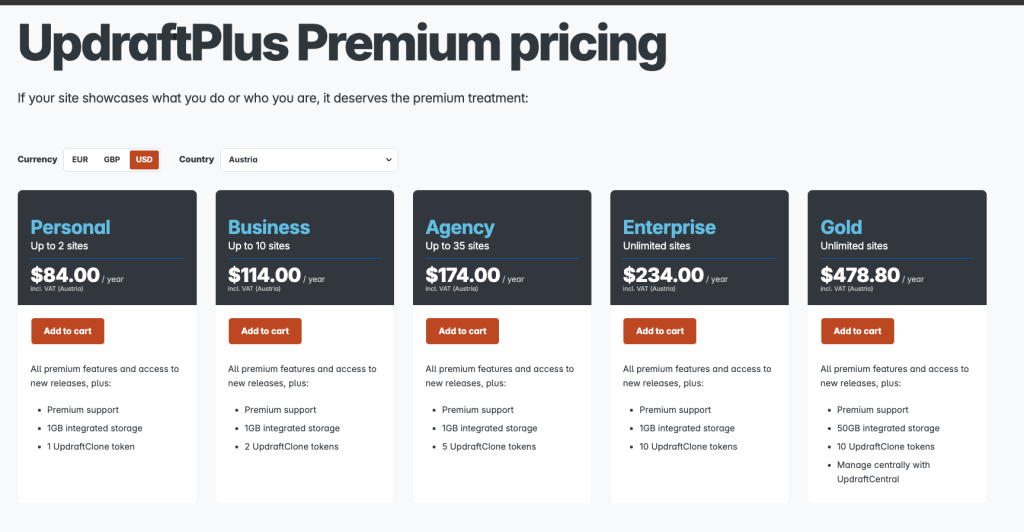
UpdraftPlus remains one of the most established WordPress backup products.
Its biggest advantage is storage flexibility.
Users can connect backups to external destinations such as Google Drive, Dropbox, Amazon S3 and other providers rather than depending entirely on storage controlled by the backup vendor. Independent comparisons consistently identify this as one of UpdraftPlus’s strongest advantages. WPBeginner
The free version is particularly competitive because it provides useful backup functionality without requiring an immediate paid subscription.
Strengths
- mature WordPress ecosystem;
- strong free version;
- scheduled backups;
- multiple remote storage destinations;
- full and partial backup support;
- straightforward dashboard restoration;
- premium incremental backups;
- migration features available in paid products.
WPBeginner’s current comparison specifically highlights UpdraftPlus for its broad free remote-storage support and scheduled backups. WPBeginner
Limitations
The trade-off is configuration.
Users are responsible for selecting and configuring the destination where backups should be stored.
That provides flexibility, but somebody who simply wants to install a plugin and let a managed service handle storage may prefer a more cloud-managed product.
Recovery also generally revolves around a functioning WordPress environment. In a complete failure scenario, restoring from archives can require setting up a fresh WordPress installation first. BlogVault’s current comparison highlights this architectural difference between UpdraftPlus and externally managed recovery. BlogVault
Best for
Users who want a mature free backup plugin and direct control over where their backups are stored.
3. Duplicator — best for WordPress migration and disaster recovery
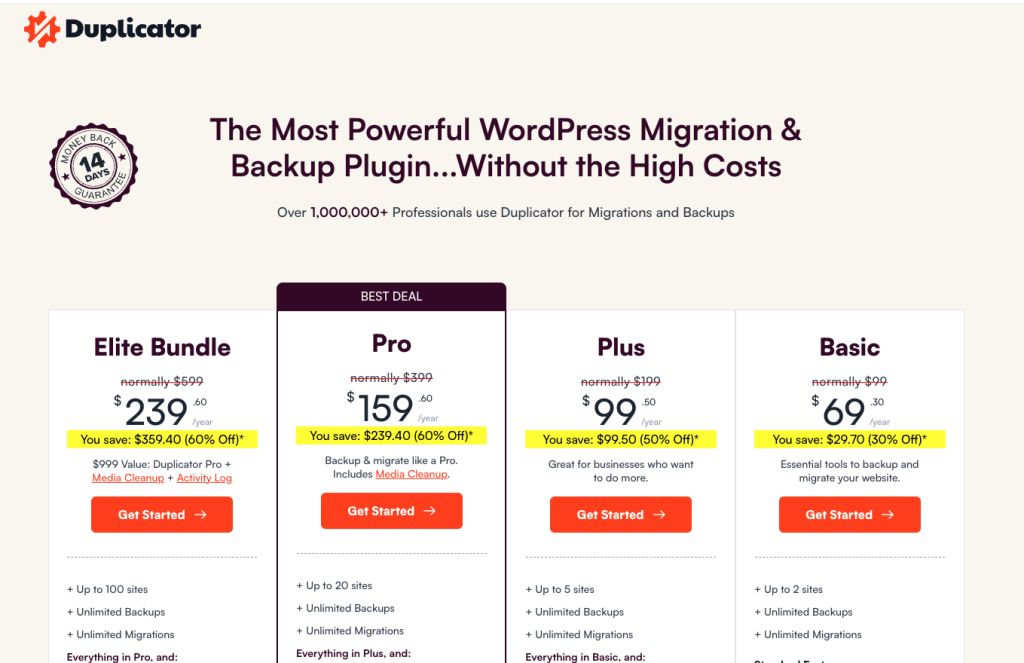
Duplicator started with a strong reputation around WordPress migration and cloning, but it has expanded considerably as a backup product.
Its current paid plans include:
- scheduled backups;
- file and database filters;
- archive encryption;
- recovery points;
- drag-and-drop migration;
- server-to-server imports;
- Google Drive;
- Amazon S3;
- Dropbox;
- Microsoft OneDrive;
- FTP/SFTP;
- and S3-compatible storage.
Higher plans add hourly backups, staging and multisite features. Duplicator
Duplicator 5.0, released in September 2026, also introduced AutoTune and new AI-assisted backup functionality. Duplicator
Strengths
Duplicator is especially strong where backup and migration overlap.
If you regularly:
- move sites between hosting providers;
- create copies of websites;
- deploy staging versions;
- need standalone recovery mechanisms;
- or manage complex WordPress installations,
Duplicator deserves serious consideration.
Limitations
The feature depth that makes Duplicator attractive to developers can also make it more than a simple website owner requires.
Some of its most useful automatic backup and cloud features are part of the paid product rather than the free version.
Best for
Developers, agencies and website owners who need both serious migration tooling and backup/disaster-recovery functionality.
4. Jetpack VaultPress Backup — best for real-time WordPress backups
Jetpack VaultPress Backup takes a different approach.
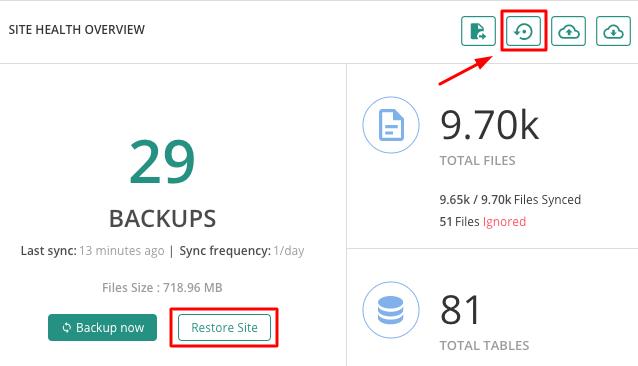
Instead of running occasional scheduled backups only, its current backup product can save changes in real time.
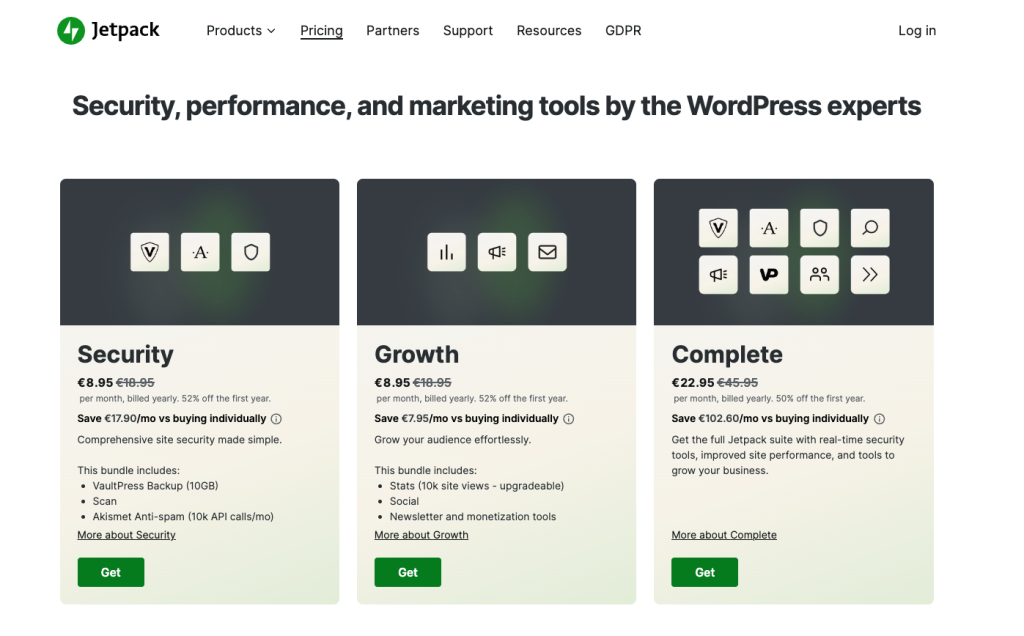
Jetpack says its system can capture changes as they occur and provides one-click restoration from its cloud backup archive. The standalone Backup product currently includes real-time cloud backups, 10 GB starting storage and a 30-day activity/archive period. Jetpack
Jetpack also says the service has processed hundreds of millions of site backups over the past decade. Jetpack
Why real-time backup matters
Consider a WooCommerce shop receiving 40 orders during a day.
With one daily backup, a catastrophic problem shortly before the next backup could potentially leave hours of recent changes outside the latest restore point.
A real-time system reduces that recovery-point gap.
Strengths
- real-time backups;
- managed cloud storage;
- activity log;
- one-click restore;
- strong WordPress.com/Automattic ecosystem;
- suitable for frequently changing sites.
Limitations
The backup product requires a paid subscription.
Users are also committing to the Jetpack ecosystem rather than selecting their own external backup provider.
Best for
WooCommerce, membership websites and other WordPress sites where content or transactional data changes frequently.
5. BlogVault — best for managed recovery and business-critical WordPress sites
BlogVault is closer to a managed backup service than a traditional plugin that simply packages files on the hosting server.
The service processes backups externally and provides its own management infrastructure. BlogVault
One particularly meaningful difference is recovery.
BlogVault can initiate recovery from its external dashboard even when the WordPress admin area is unavailable. That is materially different from systems whose normal recovery workflow begins inside wp-admin. BlogVault
Strengths
- offsite managed architecture;
- incremental backups;
- external recovery workflow;
- staging;
- migrations;
- support for larger and frequently changing sites;
- WooCommerce-oriented functionality.
Limitations
The main downside is cost.
You are paying not merely for a plugin but for managed infrastructure and associated services.
That can be unnecessary for a small static blog but much easier to justify for a revenue-generating business site.
Best for
Agencies, WooCommerce websites and organisations where reliable external recovery matters more than obtaining the cheapest backup plan.

6. WPvivid — best value for users who want many features
WPvivid has developed into one of the more feature-rich alternatives in the backup market.
Its free version currently includes:
- file and database backups;
- site migration;
- Google Drive;
- Dropbox;
- Amazon S3;
- Microsoft OneDrive;
- FTP/SFTP;
- basic scheduling;
- subdirectory staging;
- and restore functionality.
The Pro version adds incremental backup, advanced schedules, additional cloud providers, selective restores, more staging functionality and multisite support. WPvivid
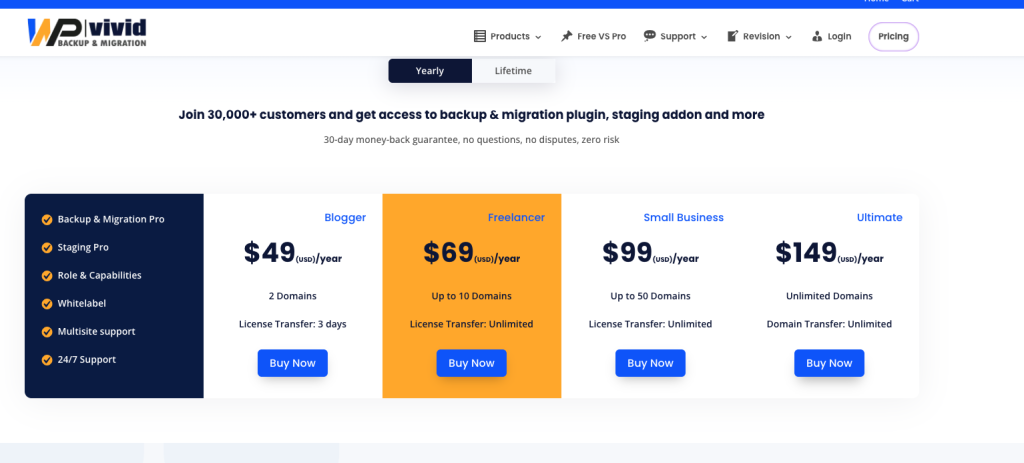
Its paid plans currently start at $49 per year for two domains, with lifetime licences also available. WPvivid
Strengths
The feature-to-price ratio is the obvious attraction.
It provides several capabilities in the free product that competing plugins reserve for premium versions.
Limitations
A large feature set means more configuration.
Users looking for a highly managed, minimal-setup backup experience may prefer a simpler cloud service.
Best for
Users who want backup, cloud storage, migration and staging without immediately paying for a premium subscription.
7. BackWPup — best for configurable WordPress backup jobs
BackWPup is another long-established WordPress backup plugin.
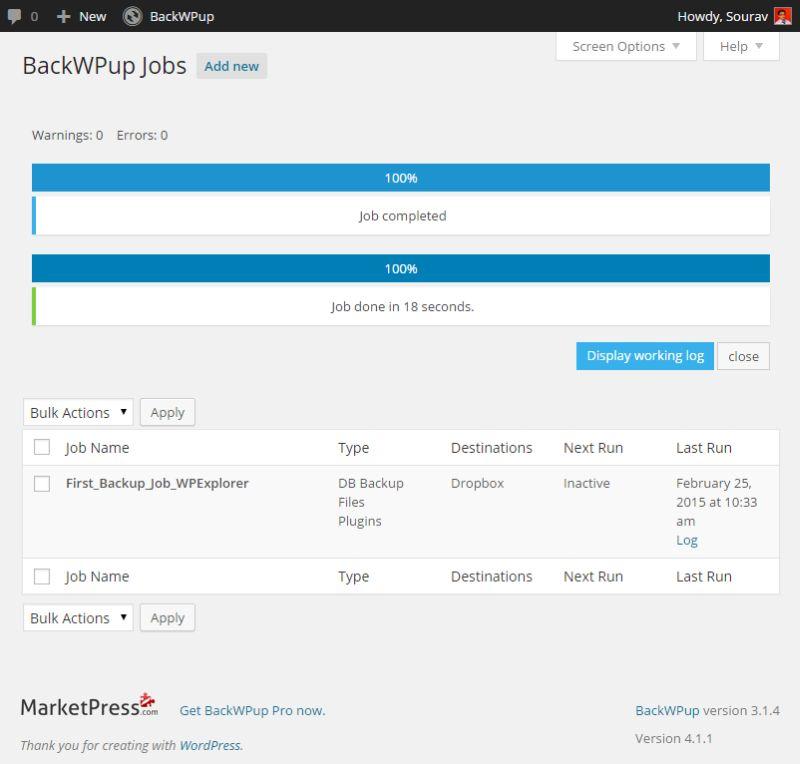
It is designed around configurable backup jobs, allowing users to control what is backed up, when a backup runs and where it should be stored.
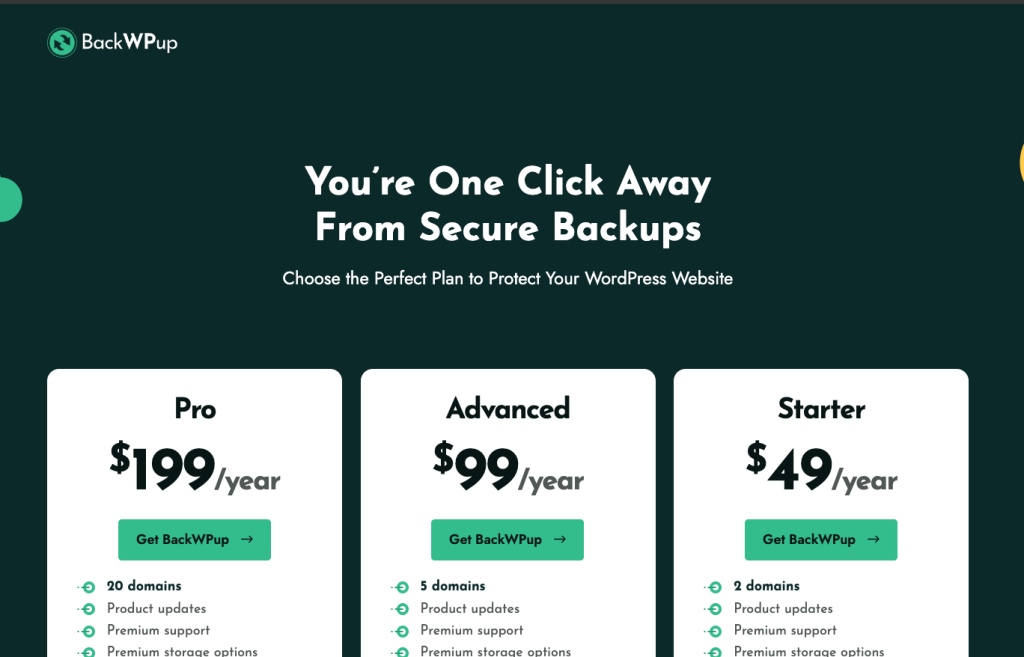
Its current paid plans start at $49 per year for two domains. Paid plans include premium storage options, encryption, migration and the Restore app. BackWPup
Strengths
- granular backup configuration;
- scheduled backup jobs;
- remote storage options;
- established WordPress product;
- migration and restore capabilities on paid plans.
Limitations
BackWPup is better suited to users who appreciate control than people looking for the simplest possible setup.
Best for
Experienced WordPress users who want to configure their backup workflow rather than use a fully managed backup service.
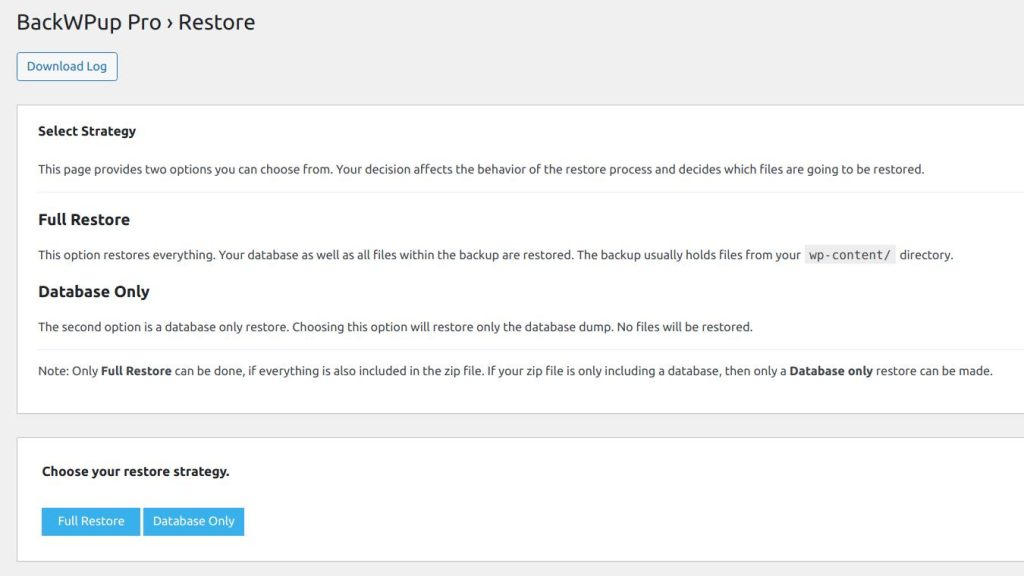
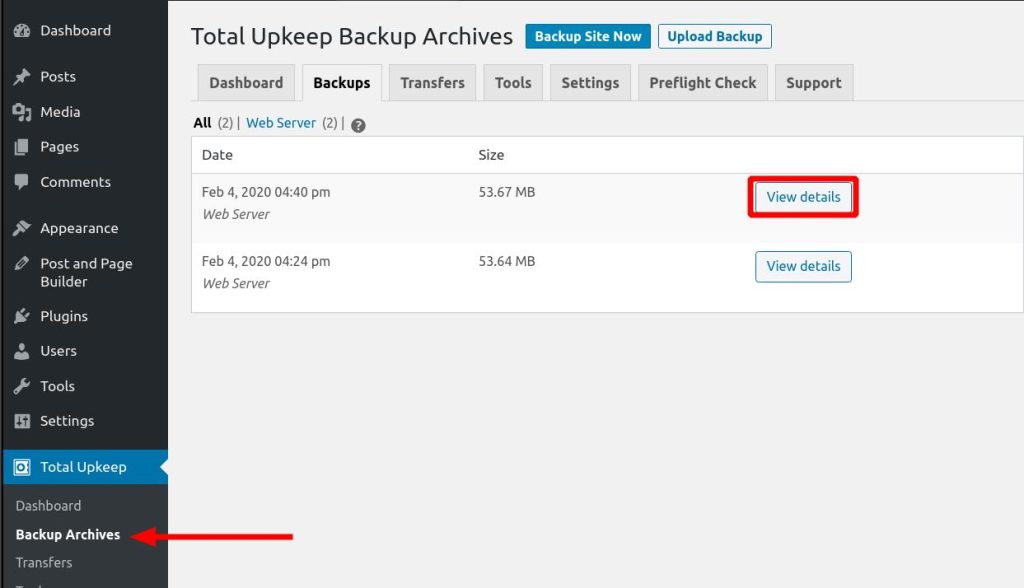
8. Total Upkeep — best low-cost option with update protection
Total Upkeep takes a slightly different approach because it combines backup with WordPress maintenance and update protection.
The current product supports scheduled backups, migration and remote storage. Premium storage options include Google Drive, Amazon S3 and FTP/SFTP. BoldGrid
One of its more distinctive features is update protection.
Total Upkeep can create a backup before software updates and automatically roll a site back if an update causes a failure. It also includes a Site Check feature designed to detect certain problems that could precede a crash. BoldGrid
Premium currently starts at $2.50 per month billed annually. BoldGrid
Strengths
- inexpensive;
- automatic scheduled backups;
- pre-update backups;
- rollback functionality;
- S3 and Google Drive on premium;
- migration;
- external restoration script.
Limitations
It does not offer the same managed cloud infrastructure or real-time backup model as products such as BlogVault, Jetpack or BackupWP’s higher-frequency plans.
Best for
Small sites that want inexpensive backups combined with protection around WordPress updates.
Which WordPress backup plugin should you choose?
Instead of asking which plugin is “best” in absolute terms, start with the type of failure you need to recover from.
Choose BackupWP if…
You want a simple cloud-first system where offsite storage and backup infrastructure are handled for you rather than requiring you to configure your own storage provider.
It is particularly interesting for shared hosting and users concerned about resource-heavy local backup processing. BackupWP states that its system uses remote cloud infrastructure and resumable transfers to reduce CPU, RAM and disk pressure on the hosting environment. BackupWP
Choose UpdraftPlus if…
You want a mature free plugin with control over external storage.
It is especially attractive if you already use Google Drive, Dropbox or S3 and prefer to keep direct control of your backup destination.
Choose Duplicator if…
Migration is just as important as backup.
Its recovery points, migration workflow and advanced deployment features make it particularly useful for developers and agencies. Duplicator
Choose Jetpack VaultPress if…
Your website changes constantly and you need real-time backup.
That makes it particularly relevant to WooCommerce and transactional sites. Jetpack
Choose BlogVault if…
You prioritise managed recovery and the ability to initiate recovery independently of wp-admin. BlogVault
Choose WPvivid if…
You want as many backup, migration and staging features as possible for relatively little money. WPvivid
BackupWP vs UpdraftPlus
This is one of the comparisons worth addressing directly because the products represent two different backup models.
UpdraftPlus gives you more control. BackupWP manages more of the infrastructure for you.
With UpdraftPlus, you can choose your own external storage provider.
With BackupWP, backups are designed around managed offsite cloud infrastructure instead.
That means the decision is not simply about which product has more features.
Choose UpdraftPlus if direct control over your storage destination is important.
Choose BackupWP if you prefer a cloud-managed workflow with less storage configuration.
This also makes BackupWP a legitimate UpdraftPlus alternative, but for a specific reason rather than because one product is universally better.
What should a WordPress backup plugin actually protect?
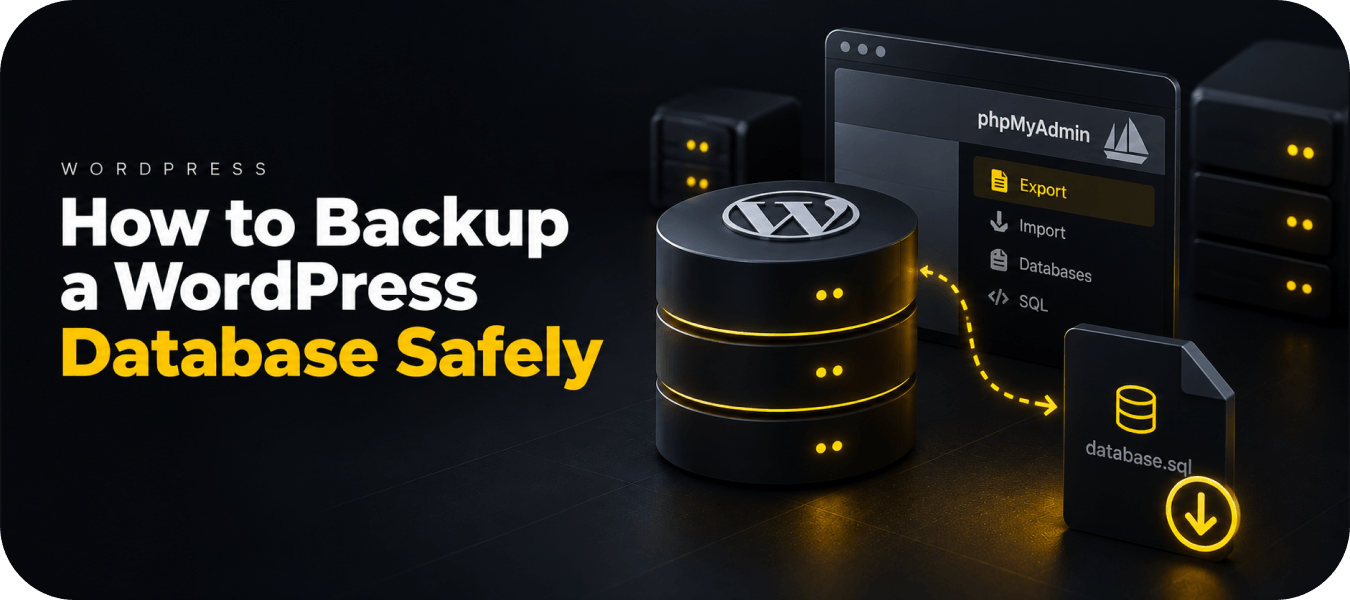
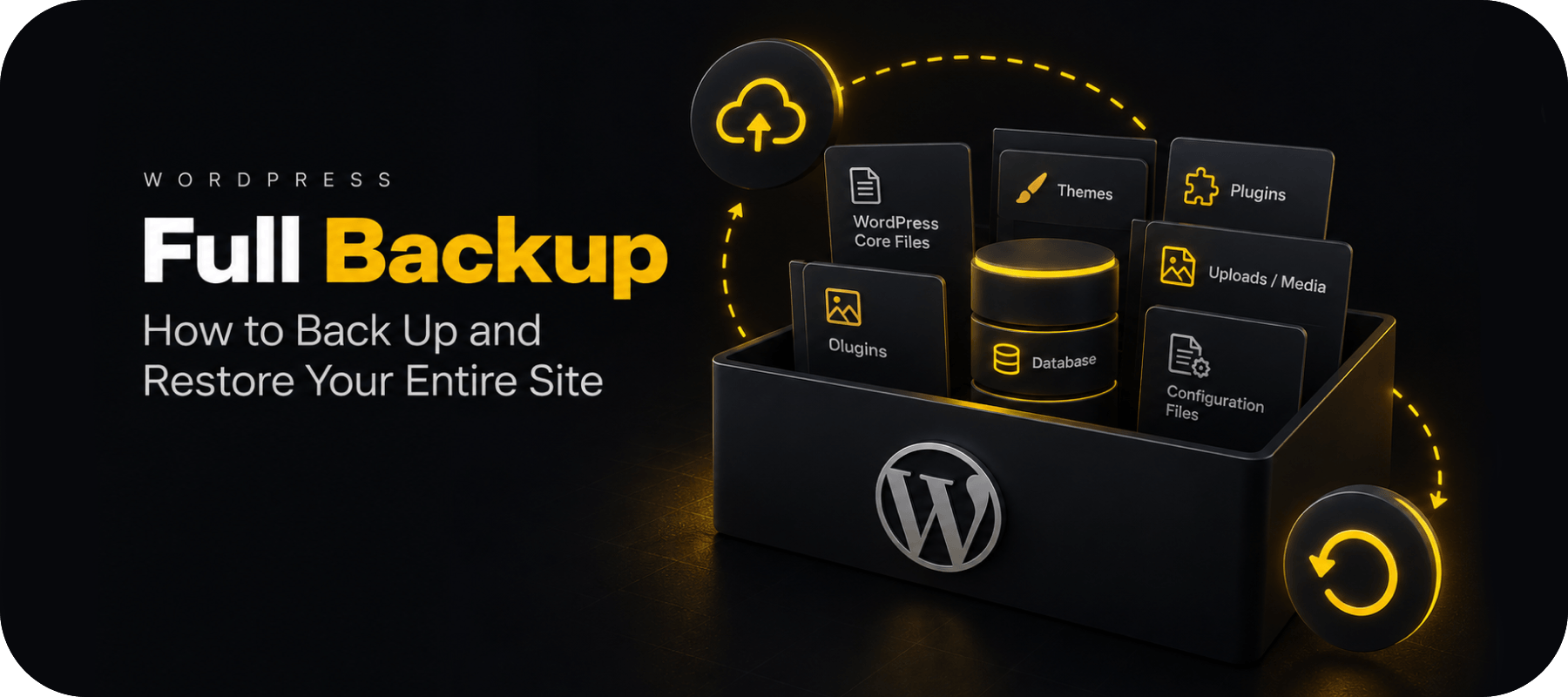
A complete WordPress backup normally needs to include both:
WordPress files
Including:
- plugins;
- themes;
- uploads and media;
- configuration files;
- custom files.
WordPress database
The database can include:
- posts;
- pages;
- site settings;
- users;
- plugin data;
- WooCommerce information;
- orders and other transactional data.
A backup that contains only files or only the database may not be sufficient for complete site recovery.
How often should you back up WordPress?
The correct frequency depends on how much data you can afford to lose.
A simple practical rule is:
| Website type | Typical starting point |
| Static portfolio | Weekly or daily |
| Business website | Daily |
| Active blog | Daily |
| Membership/community | Multiple times per day |
| WooCommerce | Multiple times per day or real-time |
| High-volume transactional site | Real-time |
This is really a recovery-point decision.
If losing 24 hours of data is acceptable, daily backup can work.
If losing one hour of orders would be expensive, your backup frequency should reflect that.
Is a free WordPress backup plugin enough?
Sometimes.
For a small website, a free plugin can provide perfectly adequate protection if it includes:
- complete files and database backup;
- dependable restore;
- automatic backups where required;
- and storage outside the live hosting environment.
The limitations become more significant when you need:
- frequent backups;
- real-time backups;
- incremental backup;
- long retention;
- managed cloud storage;
- multisite support;
- staging;
- advanced migration;
- or external disaster recovery.
UpdraftPlus and WPvivid are particularly strong examples of products with useful free functionality. WPvivid’s current free product includes multiple external cloud destinations, migration and basic scheduling. WPvivid
BackupWP also currently provides a free plan, although it is limited to on-demand backups, seven-day retention and sites up to 2 GB. BackupWP
Final comparison
The WordPress backup market in 2026 is no longer divided simply into “free plugins” and “premium plugins.”
There are now several fundamentally different approaches.
UpdraftPlus gives users extensive control over external storage.
Duplicator combines backups with powerful migration and disaster-recovery tooling.
Jetpack VaultPress Backup focuses on real-time cloud protection.
BlogVault provides managed backup infrastructure and external recovery.
WPvivid offers an unusually broad feature set at a competitive price.
Total Upkeep combines backups with update protection and rollback.
And BackupWP takes a cloud-first approach designed to minimise the amount of backup processing performed by the WordPress hosting environment. BackupWP
The best choice is therefore the one that matches your site’s recovery requirements, change frequency, hosting environment, technical confidence and budget.
The important part is not simply creating backups.
It is knowing that when something goes wrong, you can actually get the website back.
FAQ
There is no universal best plugin.
For managed cloud backups, BackupWP and BlogVault use cloud-oriented approaches. UpdraftPlus is strong when you want control over external storage. Duplicator is particularly capable for migration and disaster recovery. Jetpack VaultPress is attractive for sites that need real-time backups.
UpdraftPlus and WPvivid are among the strongest established free options because they provide meaningful backup functionality without requiring an immediate subscription. BackupWP also offers a free cloud-based plan, but with lower retention and site-size limits.
It depends on why you are replacing it.
For a more managed cloud workflow, consider BackupWP or BlogVault.
For migrations and recovery tooling, consider Duplicator.
For real-time transactional backups, Jetpack VaultPress Backup is a stronger fit.
For another feature-rich freemium plugin, WPvivid is worth comparing.
Your only backup should not be stored on the same hosting environment as the website.
If the server or hosting account becomes unavailable or compromised, the live website and locally stored backup may become unavailable together.
Remote or offsite storage reduces that dependency.
Incremental backups save changes after an initial backup instead of repeatedly processing an entire site.
This can reduce the work involved in frequent backups, particularly for larger or regularly updated websites.
But incremental backup alone does not make a product “better.” Recovery reliability, storage independence, backup frequency and restore workflow matter just as much.


Comments
Thank you for your review!
Your review has been submitted for moderation.
Write a review or ask a question